A smartphone’s primary job is to keep you connected, so few things are more frustrating than a phone that only delivers your messages when you actively unlock the screen. If you frequently find a flood of emails, WhatsApp messages, or breaking news alerts pouring in all at once the moment you wake up your device, you are experiencing delayed push notifications.
Delayed notifications on Android almost always happen because the operating system is aggressively restricting background tasks to conserve battery life or mobile data. While modern Android power-saving features successfully extend how long your phone lasts on a single charge, they often over-optimize communication apps, treating vital instant messages like low-priority background tasks.
To restore real-time alerts without draining your battery unnecessarily, you must manually adjust specific background network permissions for your most critical apps. This guide explains why these delays happen and walks you through the exact settings you need to change.
Symptoms and Plausible Causes of Delayed Notifications
Before diving into the settings menu, it helps to understand how Android handles background activity. When your screen is turned off and the device is left unplugged, the operating system enters deep power-saving states designed to minimize CPU and radio usage.
Understanding “Doze” and “App Standby”
Introduced in older versions of Android and refined every year since, Doze Mode activates when a phone is stationary and the screen is off. During Doze, Android temporarily suspends network access and ignores background sync requests. The system only wakes up during brief, periodic “maintenance windows” to process queued notifications. App Standby, on the other hand, limits the background network access of apps you haven’t actively opened in several days.
If your notifications arrive late, the causes usually include:
-
Aggressive Battery Optimization: The app has been grouped into an “Optimized” or “Sleeping” battery tier, preventing it from pinging its server in the background.
-
Data Saver Restrictions: The Android Data Saver is active, and the app lacks permission to fetch data in the background over a cellular network.
-
Silent Notification Channels: The notification actually arrived on time, but it was grouped into a “Silent” category that skips playing a sound or showing a banner on your screen.
-
Third-Party Cleaners: A downloaded “RAM Booster” or task-killing app is repeatedly force-closing the messaging app’s background listener.
Safe Preliminary Checks
Start with these safe, immediate checks before digging into deeper system settings.
-
Restart Your Phone: A simple reboot clears temporary memory, resets background listener services, and fixes temporary handshake errors between your phone and Google’s push notification servers.
-
Turn Off Standard Battery Saver: Pull down your Quick Settings shade. If the standard Battery Saver or Power Saving Mode toggle is illuminated, your phone is actively blocking push notifications. Turn it off to see if normal notification behavior resumes.
-
Check Your Internet Connection: Toggle Airplane Mode on for ten seconds and then turn it off. Sometimes a device gets stuck switching between a weak Wi-Fi signal and mobile data, causing push alerts to stall.
Step-by-Step Troubleshooting: Settings to Check
The menu names will vary slightly depending on whether you are using a Google Pixel, a Samsung Galaxy, or another Android device. Follow the steps in order from the most targeted per-app fixes to broader system-wide changes.
Step 1: Set App Battery Usage to “Unrestricted”
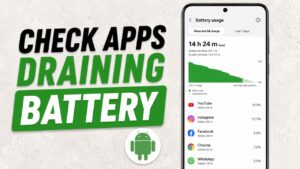
Android’s default battery management restricts background activity for apps set to “Optimized.” If an app sits on this default setting, it will eventually experience delayed notifications.
On Standard Android (Google Pixel, Motorola, Nokia):
-
Long-press the icon of the problem app (e.g., Gmail, WhatsApp, Slack) on your home screen or app drawer.
-
Tap the App info icon (usually an “i” inside a circle).
-
Scroll down and tap App battery usage (or Battery).
-
Change the setting from Optimized to Unrestricted (or Don’t optimize).
What this does: Unrestricted mode exempts the app from Android’s strict Doze and App Standby rules, allowing it to poll its servers for new messages instantly, even when the screen is locked.
Step 2: Check Samsung “Sleeping” and “Deep Sleeping” Apps
Samsung’s One UI software includes an extra layer of aggressive battery management called Background Usage Limits. If Samsung thinks you rarely use an app, it will force it to “sleep”.
On Samsung Galaxy Devices:
-
Open your phone’s Settings.
-
Scroll down and tap Battery and device care (or simply Battery).
-
Tap Background usage limits.
-
Look at the Sleeping apps and Deep sleeping apps lists. Apps in deep sleep will never run in the background and will only show notifications when you actively tap and open them.
-
If your essential app is on either list, tap the three dots in the top right corner (or long-press the app) and select remove.
-
To permanently prevent the delay, return to the Background usage limits screen, tap Never auto sleeping apps, tap the + icon, and add the app to this unrestricted list.
Step 3: Enable Background Data and Unrestricted Data Usage
If your notifications arrive instantly on Wi-Fi but are delayed when you leave the house, the Android system is blocking cellular background data.
-
Go to Settings > Apps > See all apps.
-
Tap on the application experiencing delays.
-
Tap Mobile data & Wi-Fi (or Mobile data).
-
Turn ON the toggle for Background data.
-
Turn ON the toggle for Unrestricted data usage.
What this does: This guarantees that even if you have the system-wide “Data Saver” mode enabled, this specific app is allowed to use cellular data behind the scenes to fetch your push notifications.
Step 4: Review Notification Categories and Silent Alerts
Android allows apps to categorize their notifications. It is highly possible that an alert arrived on time but was delivered silently, meaning your phone did not vibrate or wake the screen, making you think the notification was delayed.
-
Go to Settings > Apps > See all apps > [App Name] > Notifications.
-
Ensure the master toggle at the top is switched on.
-
Look at the list of Notification Channels (e.g., “Direct Messages,” “Group Chats,” “Mentions”). Do not just look at the toggles—tap directly on the text of the category name.
-
Verify that the channel is set to Default (or Alerting) rather than Silent. If set to Silent, the alert will only appear when you pull down the notification shade.
-
Additionally, check Settings > Notifications > Do Not Disturb to verify that an automated DND profile or Bedtime Mode isn’t accidentally suppressing your alerts during the day.
Step 5: Disable System-Wide Adaptive Battery
If every single app on your phone is delaying notifications until you unlock the screen, your phone’s predictive power saver is queuing all alerts.
-
Open Settings.
-
Tap Battery.
-
Tap Battery Saver or Adaptive Preferences (the exact wording varies by manufacturer).
-
Toggle OFF Adaptive Battery.
What this does: Adaptive Battery uses machine learning to limit the background resources of apps you don’t use often. Disabling it forces the system to treat all apps equally, which can solve widespread notification delays at the cost of slightly higher standby battery drain.
Additional System Culprits to Avoid
If you have adjusted all the battery and data settings above and alerts are still arriving late, check these external factors:
-
Google Play Services Cache Issues: The vast majority of Android apps do not ping their own servers for notifications; they rely on Firebase Cloud Messaging, which is routed through Google Play services. If this core system app encounters an error, notifications stall. Go to Settings > Apps > See all apps > Google Play services > Storage & cache and tap Clear cache.
-
Third-Party “RAM Cleaners” and “Task Killers”: Avoid downloading apps marketed as speed boosters or RAM cleaners. These utilities forcibly terminate background apps. Android immediately attempts to restart the apps, creating a loop that destroys battery life and severely delays notifications. Stick to Android’s built-in memory management.
-
Wi-Fi Power-Saving Modes: Some devices include an intelligent Wi-Fi setting that intermittently disconnects the antenna when the screen is off to save power. If you experience delays exclusively on Wi-Fi, go to your Wi-Fi settings, tap the advanced menu, and ensure options like “Wi-Fi power saving mode” are disabled.
Practical Prevention Habits
To keep notifications arriving instantly moving forward, avoid habitually swiping away apps from your “Recent Apps” screen. When you manually swipe an app away, you are signaling to Android that you are done with the application, prompting the system to kill its background processes. Let Android manage the memory automatically. Only force-close an app if it is actively frozen or crashing.
Furthermore, apply the “Unrestricted” battery setting selectively. Only grant unrestricted background access to vital communication tools, medical alerts, or security apps. Leaving heavy social media feeds on unrestricted mode will cause notable background battery drain.
Frequently Asked Questions (FAQ)
Why do my notifications only appear when I open the app?
If notifications flood in exactly when you launch an app, the app is trapped in a “Deep Sleep” or “Restricted” battery state. Android is preventing the app from establishing a network connection in the background. Changing the app’s battery setting to “Unrestricted” and enabling “Background data” will allow it to sync while the screen is off.
Does standard Battery Saver mode stop notifications?
Yes. When you manually activate standard Battery Saver mode (usually indicated by a yellow battery icon or dark mode activating), Android deliberately disables background syncing, location checks, and non-essential push notifications to maximize your remaining charge. Notifications will be delayed until you turn Battery Saver off or open the apps individually.
Will setting an app to “Unrestricted” ruin my battery life?
Setting one or two critical apps (like WhatsApp or your primary email client) to “Unrestricted” will have a minimal, barely noticeable impact on your daily battery endurance. However, applying this setting to every app on your phone will prevent your device from ever entering Doze mode, causing your standby battery life to drain much faster.
Why are my text messages (SMS) arriving late?
Unlike push notifications from web-based apps, standard SMS text messages arrive over your carrier’s cellular network, not via data servers. If standard SMS messages are delayed, the issue is typically a weak cellular signal, a faulty SIM card, or an outage with your mobile network provider. Try resetting your network settings or contacting your carrier.
Conclusion
Tracking down the cause of delayed Android notifications usually requires navigating the tug-of-war between power conservation and background connectivity. By moving your most important communication apps out of the “Optimized” battery tier, removing them from Samsung’s sleeping lists, and ensuring they have unrestricted background data access, you can restore real-time alerts. Always keep Adaptive Battery enabled for the rest of your apps so your phone continues to save power where it actually counts.
C. Verified Direct Official Sources
-
Source Title: Optimize for Doze and App Standby | App quality
-
Publisher: Android Developers (Google)
-
Direct URL:
https://developer.android.com/training/monitoring-device-state/doze-standby -
What the Source Supports: Technical explanation of how Doze mode and App Standby work when an Android device is unplugged and stationary; confirms that the system suspends network access, ignores wake locks, and defers background sync tasks to conserve battery power.
-
Verification Status: Verified via web retrieval tool; direct official Android Developer documentation URL confirmed active and accurate.
-