When a program on your computer suddenly freezes, closes without warning, or refuses to open, the most common advice on the internet is to uninstall and reinstall it. While reinstalling occasionally fixes a damaged program folder, it often fails to stop recurring crashes—and it can create new headaches by wiping out custom preferences, local workspaces, plug-ins, or unsaved settings.
Even worse, standard uninstallers rarely remove everything. Most Windows applications store user configurations, temporary caches, and licensing data inside hidden profile folders (such as AppData), while relying on shared Windows components, graphics drivers, and background services to run. If a corrupted cache file, an outdated display driver, or a conflicting background utility is triggering the crash, a freshly reinstalled copy of the app will read those exact same broken files and crash all over again.
Before you waste time downloading large installers or reconfiguring your software from scratch, you can use built-in Windows diagnostic tools to find out why the application is failing. This guide walks you through how to read crash clues in Windows 11 and Windows 10, run quick preliminary checks, and apply targeted, non-destructive fixes in the safest order.
Common Crash Symptoms and What They Reveal About the Root Cause
How an application fails provides your first major diagnostic clue. Before changing any system settings, pay attention to when and how the crash happens:
- Instant closure on launch (crash-on-startup): You double-click the icon, a brief loading spinner or splash screen appears for a second, and the window vanishes. This pattern usually points to a corrupted local configuration file, a missing shared runtime library such as the Microsoft Visual C++ Redistributable (https://learn.microsoft.com/en-us/cpp/windows/latest-supported-vc-redist?view=msvc-170), or a third-party screen overlay trying to hook into the app’s startup window.
- Mid-task freeze (“Not Responding”) followed by closure: The program opens normally, but when you load a large project, switch tabs, export a file, or join a video call, the title bar displays (Not Responding), the window turns pale white, and Windows closes it. This behavior frequently indicates a hardware driver timeout (especially graphics or audio drivers), insufficient free system memory (RAM), or low disk space on your primary drive.
- Silent disappearance to the desktop: The application closes instantly during regular use without showing an error message box. Even when nothing pops up on screen, Windows Error Reporting (WER) (https://learn.microsoft.com/en-us/troubleshoot/windows-client/system-management-components/windows-error-reporting-diagnostics-enablement-guidance) captures the exception in the background and records a timestamped entry inside Windows Event Viewer.
- Multiple unrelated apps crashing in the same session: If your web browser, a spreadsheet app, and a media player all start crashing within hours of each other, the fault is almost never inside the individual apps. Look instead for a recent Windows update, corrupted operating system files, or a failing hardware component.
Safe Preliminary Checks Before Deep Troubleshooting
Before digging into system logs or configuration utilities, rule out three temporary system conditions that frequently masquerade as software bugs. These checks take less than three minutes and do not alter any app data.
1. Check for Stuck Background Processes and Memory Pressure in Task Manager
When an app crashes, parts of its background process can remain suspended in memory, blocking the program from launching cleanly the next time you click its icon. High memory or disk usage from other open programs can also starve the app of resources.
- Press Ctrl + Shift + Esc on your keyboard to open Task Manager (as outlined in Microsoft’s guide to improving PC performance in Windows (https://support.microsoft.com/en-us/windows/experience/performance-optimization/tips-to-improve-pc-performance-in-windows)).
- On the Processes tab, look for any remaining instances of the crashing application. If you see one, right-click it and select End task.
- Switch to the Performance tab and check Memory and Disk usage. If memory utilization is hovering near 95–100%, close heavy background applications or browser tabs before testing the crashing program again.
2. Verify Free Storage Space on Your System Drive
Both Windows and desktop applications constantly write temporary scratch files and virtual memory (paging file) data to your primary C: drive. When a drive runs critically low on free space, apps crash the moment they try to allocate temporary storage.
- Select Start > Settings > System > Storage (detailed in Microsoft’s PC performance and storage guidance (https://support.microsoft.com/en-us/windows/experience/performance-optimization/tips-to-improve-pc-performance-in-windows)).
- Check how much free space remains on your main drive. If you have less than 10–15 GB available, select Temporary files, choose the unneeded temporary categories (taking care not to delete files you still need in your
Downloadsfolder), and select Remove files, or turn on Storage Sense to clean temporary caches automatically.
3. Perform a True Restart (Not Shut Down)
In modern Windows 10 and Windows 11 systems, clicking Shut down typically uses a feature called Fast Startup, which saves the current system kernel and loaded drivers into a hibernation file rather than clearing them completely. To flush stuck memory states and reload drivers cleanly, select Start > Power > Restart.
Step-by-Step Guide to Identifying and Fixing Windows App Crashes
Work through the numbered steps below in order. Step 1 identifies the exact component responsible for the crash, and Steps 2 through 6 resolve the underlying cause starting with the least disruptive methods.
Step 1: Inspect the Crash Record in Windows Event Viewer
Whenever a program crashes on Windows, the operating system records a structured diagnostic report. Checking this log takes the guesswork out of troubleshooting because it names the exact file that failed.
According to Microsoft Learn’s troubleshooting guidance for application and service crashing behavior (https://learn.microsoft.com/en-us/troubleshoot/windows-server/performance/troubleshoot-application-service-crashing-behavior), application crashes generate Event ID 1000 (under the Application Error source) alongside Event ID 1001 (under Windows Error Reporting).
How to view your app’s crash report:
- Select Start, type
Event Viewer(oreventvwr), and open Event Viewer from the results. - In the left navigation pane, expand Windows Logs and select Application.
- Wait a few seconds for the log list to load in the center pane. Look for entries marked with a red Error icon and an Event ID of 1000 at the exact time your app crashed.
- Click the Event ID 1000 entry and read the General tab at the bottom. Focus on four lines:
- Faulting application name: Confirms the executable file (for example,
AppName.exe) and version that closed. - Faulting module name and Faulting module path: Identifies the specific library (
.dllfile) where the crash occurred. - Exception code: Provides the hexadecimal error code explaining why Windows terminated the process.
- Faulting application name: Confirms the executable file (for example,
How to interpret what Event Viewer tells you:
- If the faulting module is inside a third-party folder: Look closely at the
Faulting module path. If it points to a screen recorder, gaming overlay, cloud-sync shell extension, or audio enhancer rather than the crashing app’s own folder, that third-party tool caused the crash. Skip directly to Step 5 (Clean Boot) or update/disable that specific utility. - If the faulting module is a graphics driver file: Names like
nvlddmkm.sys,nvwgf2umx.dll(NVIDIA),amdxn64.dll,aticfx64.dll(AMD), origdumdim64.dll(Intel) point to a display driver fault. Proceed to Step 3. - If the faulting module is
vcruntime140.dll,msvcp140.dll, orucrtbase.dll: The crash involves shared C++ runtime libraries. Proceed to Step 6. - If the faulting module is
ntdll.dll,kernel32.dll, orkernelbase.dll: As Microsoft Learn notes in its crash analysis documentation (https://learn.microsoft.com/en-us/troubleshoot/windows-server/performance/troubleshoot-application-service-crashing-behavior), these core Windows modules are heavily used whenever processes transition between user mode and kernel mode, meaning they frequently appear as “victims” of memory corruption caused earlier by another misbehaving module. Do not attempt to delete or manually replace these system DLLs. - Common Exception Codes to note:
0xc0000005(STATUS_ACCESS_VIOLATION): The app or an injected plug-in tried to read or write protected memory. Usually caused by outdated drivers, conflicting overlays, or a bug fixed in an app update.0xc0000022(STATUS_ACCESS_DENIED): The process was blocked from accessing a required file or resource, often due to folder permission changes or overzealous security software.0xc0000374(STATUS_HEAP_CORRUPTION): Memory allocation structures were damaged, commonly triggered by faulty add-ins, corrupted local caches, or damaged system files.
Step 2: Check Pending Windows Updates and Microsoft Store App Updates
An application often begins crashing right after an operating system patch or an incomplete background app update creates a version mismatch. Installing pending updates ensures both the OS and the app share compatible system libraries.
1. Check for Windows Updates (Microsoft Support: Install Windows Updates (https://support.microsoft.com/en-us/windows/deployment/updates-lifecycle/install-windows-updates)):
- On Windows 11: Select Start > Settings > Windows Update, then select Check for Windows updates. If updates appear, select Download & install and restart your PC if prompted.
- On Windows 10: Select Start > Settings > Update & Security > Windows Update, then select Check for Windows updates.
- Version note: As documented on Microsoft’s Windows Update support page (https://support.microsoft.com/en-us/windows/deployment/updates-lifecycle/install-windows-updates), free software updates, technical assistance, and security fixes for Windows 10 ended on October 14, 2025. If you are still using Windows 10, newer versions of modern applications may increasingly rely on APIs or security updates only actively maintained in Windows 11.
2. Update Microsoft Store and Packaged Apps (Microsoft Support: Fix problems with apps from Microsoft Store (https://support.microsoft.com/en-us/accounts-billing/fix-problems-with-apps-from-microsoft-store)):
Even many built-in Windows tools (like Snipping Tool, Photos, Calculator, Notepad, and Media Player) update through Microsoft Store rather than Windows Update.
- On Windows 11: Open Microsoft Store from the Start menu, select Library in the lower-left corner, and click Get updates.
- On Windows 10: Open Microsoft Store, select See more (
...) in the upper-right corner, and choose Downloads and updates > Get updates.
How to verify: Once updates finish installing, restart your PC and launch the app to check if the crash is resolved.
Step 3: Update Hardware and Graphics Drivers Safely
Modern desktop apps—including web browsers, office suites, PDF readers, and chat programs—use GPU hardware acceleration to draw menus and video smoothly. When a graphics or audio driver malfunctions, the app crashes even if the rest of Windows stays running.
Follow Microsoft’s official guide to getting recommended and updated hardware drivers (https://support.microsoft.com/en-us/windows/hardware/drivers/automatically-get-recommended-and-updated-hardware-drivers) to check for validated driver updates:
- On Windows 11:
- Select Start > Settings > Windows Update > Advanced options.
- Under Additional options, select Optional updates.
- Expand the driver updates list, check any available display, audio, or chipset drivers, and select Download & install.
- On Windows 10:
- Select Start > Settings > Update & Security > Windows Update.
- If View optional updates appears, select it, expand Driver updates, select the relevant drivers, and click Download and install.
What result to expect and how to verify: Microsoft explicitly advises restarting your Windows device (Start > Shut down or sign out > Restart) after all driver updates finish installing—even if none of the updates prompted for a restart. If Windows Update does not list a driver update and Event Viewer still points to your graphics card, visit your PC manufacturer’s (OEM) or GPU manufacturer’s official support page to download the latest Windows-compatible driver.
Step 4: Use the Built-In “Repair” Option Before Touching “Reset”
If only one specific app is crashing and its local installation files or registration entries are damaged, Windows includes a non-destructive Repair feature. Understanding the difference between Repair and Reset is crucial before you click anything:
- Repair: Scans and fixes the app’s installation package and registration in Windows without deleting your personal app data, preferences, or sign-in state.
- Reset: Deletes the app’s local cache, configuration files, and saved settings, returning the app to the exact state it was in when first installed.
Follow the steps in Microsoft’s guide to repairing apps and programs in Windows (https://support.microsoft.com/en-us/windows/apps/repair-apps-and-programs-in-windows):
For packaged apps and modern Windows programs (via Settings):
- On Windows 11:
- Select Start > Settings > Apps > Installed apps.
- Find the crashing app in the list, click the More icon (
...) on the right, and select Advanced options (note that some traditional desktop apps do not display this option). - Scroll down and select Repair. Wait for a checkmark to appear next to the button, then test the app.
- On Windows 10:
- Select Start > Settings > Apps > Apps & features.
- Click the name of the app you want to fix and select Advanced options.
- Select Repair and wait for the completion checkmark.
For classic desktop programs (via Control Panel):
If an older desktop application does not show Advanced options in Settings, check its classic installer repair routine:
- Type
control panelin the taskbar search box and open Control Panel. - Select Programs > Programs and Features.
- Right-click the crashing program and select Repair (or select Change if
Repairis not shown, then choose the repair option inside the setup wizard) and follow the on-screen prompts.
When to use Reset: Only click Reset under Advanced options if Repair did not stop the crash and you suspect a corrupted local cache or setting inside the app is preventing it from starting. Before clicking Reset, verify that your projects or notes are synced to your cloud account or backed up in your Documents folder, as local app preferences and cached sign-ins will be erased.
Step 5: Isolate Background Software Conflicts with a Windows Clean Boot
If an application crashes with an Access Violation (0xc0000005) or freezes unpredictably despite being repaired, another program running silently in the background is often interfering with it. Common culprits include third-party antivirus suites, firewall modules, screen-recording hooks, performance overlays, and peripheral macro software.
A Clean Boot starts Windows with only essential Microsoft drivers and services so you can test the crashing app in a conflict-free environment. Follow Microsoft’s official Clean Boot instructions (https://support.microsoft.com/en-us/windows/experience/startup-boot/how-to-perform-a-clean-boot-in-windows) carefully:
- Sign in to Windows with an administrator account.
- Select Search, type
msconfig, and open System Configuration. - Switch to the Services tab.
- Critical safety step: Check the box labeled Hide all Microsoft services at the bottom-left corner first.
- Once all Microsoft services are hidden, click Disable all and then select Apply.
- Switch to the Startup tab and select Open Task Manager.
- On the Startup apps tab in Task Manager, select each item whose status is Enabled and click Disable. (Tip: Use the Windows Snipping Tool to take a screenshot of your Startup apps list first so you remember which programs were originally enabled.)
- Close Task Manager, return to the System Configuration window, select OK, and restart your PC.
How to verify and isolate the culprit:
- After your PC restarts in the Clean Boot environment, open the app that was crashing and use it normally.
- If the app no longer crashes: You have confirmed that a disabled background service or startup program was causing the crash. As explained in Microsoft’s Clean Boot isolation guide (https://support.microsoft.com/en-us/windows/experience/startup-boot/how-to-perform-a-clean-boot-in-windows), re-enable the upper half of your non-Microsoft services (or startup apps), restart, and test again. By testing half of the items at a time, you can quickly narrow down the exact conflicting utility and either update it, configure an exclusion, or leave its startup item disabled.
- How to return your PC to normal startup afterward: Open
msconfig, select Normal Startup on the General tab, go to the Services tab, uncheck Hide all Microsoft services, click Enable all > Apply, and re-enable your desired startup programs in Task Manager (leaving only the offending software disabled).
Step 6: Repair Corrupted Windows System Files and Shared Visual C++ Runtimes
When multiple apps crash or Event Viewer points to system libraries or runtime DLLs, repairing the underlying Windows component store and C++ runtime packages fixes the foundation those apps depend on without touching your personal files.
1. Run DISM and System File Checker (SFC)
Microsoft recommends running Deployment Image Servicing and Management (DISM) before System File Checker (sfc /scannow) so Windows has healthy cached files ready for the repair. Follow the steps in Microsoft’s official System File Checker guide (https://support.microsoft.com/en-us/windows/experience/backup-recovery/use-the-system-file-checker-tool-to-repair-missing-or-corrupted-system-files):
- Select Search, type
cmd, right-click Command Prompt, and select Run as administrator. Select Yes or Allow if prompted. - In the Administrator Command Prompt window, type the following command and press Enter:
DISM.exe /Online /Cleanup-image /Restorehealth - Wait several minutes for DISM to connect to Windows Update and report that the restore operation completed successfully.
- Next, type the following command and press Enter:
sfc /scannow - Do not close the Command Prompt window until verification reaches 100%.
What result to expect: When sfc /scannow finishes, it will report either that Windows Resource Protection did not find any integrity violations or that it found corrupt files and successfully repaired them. Restart your computer after the scan completes and test your application.
2. Repair or Update Microsoft Visual C++ Redistributable Packages
Many third-party Windows desktop applications built with Microsoft Visual Studio rely on shared Microsoft C and C++ Runtime libraries (vcruntime140.dll, msvcp140.dll). According to Microsoft Learn’s Visual C++ Redistributable documentation (https://learn.microsoft.com/en-us/cpp/windows/latest-supported-vc-redist?view=msvc-170):
- Applications built with Visual Studio 2017, 2019, 2022, or 2026 share the same Visual C++ v14 Redistributable family.
- If Event Viewer shows a crash in a Visual C++ runtime DLL, open
Control Panel > Programs > Programs and Features, right-click Microsoft Visual C++ 2015–2022 (or 2017–2026) Redistributable, select Change, and click Repair. - If a required package is missing, download the official installer matching your app’s target architecture (
X64for 64-bit apps,X86for 32-bit apps, orARM64) directly from Microsoft’s latest supported Visual C++ Redistributable downloads page (https://learn.microsoft.com/en-us/cpp/windows/latest-supported-vc-redist?view=msvc-170), or follow the app publisher’s runtime instructions.
Alternative Solutions If the App Still Crashes
If you have completed the steps above and the application still crashes—or if you want to avoid reinstalling your entire operating system—consider these non-destructive escalation steps based on Microsoft’s Recovery options in Windows (https://support.microsoft.com/en-us/windows/experience/backup-recovery/recovery-options-in-windows):
- Uninstall a recent Windows update: If the crashes began immediately after a cumulative Windows update, roll back that specific patch via
Start > Settings > Windows Update > Update history > Uninstall updates. Your personal files and installed apps are preserved. - Roll back with System Restore or Point-in-Time Restore:
- System Restore (available on both Windows 10 and Windows 11) rolls back system files, registry settings, and drivers to an earlier restore point without affecting your personal files.
- Point-in-time restore (available on Windows 11, version 24H2 or later via
Settings > System > Recovery > Point-in-time restore) rolls back the system to a recent automatic snapshot taken within the last three days. Because Point-in-time restore reverts apps, settings, and local files to that snapshot, back up any files created since the restore point before running it.
- Run a Windows Security malware scan: Malware or unwanted cryptominers can inject code into legitimate processes and cause crashes. Run a scan via Start > Settings > Privacy & security > Windows Security > Virus & threat protection > Quick scan (or
Settings > Update & Security > Windows Securityon Windows 10), as recommended in Microsoft’s PC performance and security troubleshooting guide (https://support.microsoft.com/en-us/windows/experience/performance-optimization/tips-to-improve-pc-performance-in-windows). - Reinstall only the affected application after clearing its leftover cache: Once Event Viewer and Clean Boot confirm that your drivers, Windows system files, and background services are healthy, you know the fault is isolated to the app itself. At that point, back up your app settings, uninstall the app via
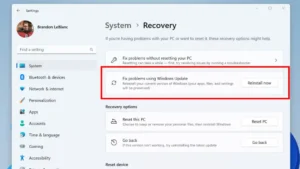
Settings > Apps > Installed apps, remove its leftover folder in%LocalAppData%or%AppData%if recommended by the software vendor, and install the latest version from the official publisher or Microsoft Store. - Use “Reinstall Windows using Windows Update” before “Reset this PC”: If system-wide app crashes persist on Windows 11 (version 22H2 or later), Microsoft’s Recovery options documentation (https://support.microsoft.com/en-us/windows/experience/backup-recovery/recovery-options-in-windows) recommends using the in-place Windows Update reinstallation option (
Settings > System > Recovery > Fix problems using Windows Update), which repairs the operating system while preserving all of your files, apps, and settings—unlikeReset this PC, which removes all installed applications.
What You Should Avoid Deleting, Downloading, or Changing
When an app keeps crashing, rushed fixes often cause worse system damage than the original bug. Avoid these common pitfalls:
- Never download individual
.dllfiles from unofficial “DLL download” websites: If Event Viewer or an error popup names a file likentdll.dll,vcruntime140.dll, ord3d11.dll, never download a loose replacement file from a third-party site. Unverified DLLs frequently carry malware or version mismatches that break Windows further. Always repair system files usingDISMandsfc /scannowor official Microsoft runtime installers. - Never click “Disable all” in
msconfigwithout checking “Hide all Microsoft services” first: Disabling essential Microsoft services in the System Configuration utility can prevent Windows Installer, networking, audio, or Windows Hello PIN sign-in from functioning when your computer restarts. - Do not manually delete files inside
C:\Windows\System32orC:\Windows\WinSxS: TheWinSxSfolder is the official Windows component store thatDISMandSFCrely on to repair corrupted files. Deleting files from these directories can render Windows unbootable. - Avoid third-party “registry cleaners” and “PC booster” downloads: Automated registry cleaners frequently delete valid application file associations and COM registration keys, causing more programs to crash. Stick to built-in Windows tools (
Storage Sense,Disk Cleanup,Task Manager, and Microsoft’s official tools).
Practical Prevention Advice to Keep Windows Apps Stable
Once your applications are running reliably again, a few simple habits will prevent future crash loops:
- Keep Windows Update and Microsoft Store updates active: Allow cumulative updates and Microsoft Store library updates to install automatically during your off-hours so app binaries stay aligned with Windows security patches.
- Maintain at least 15–20% free storage on your
C:drive: Enable Storage Sense (Settings > System > Storage) so temporary installation caches and crash dumps do not choke virtual memory. - Audit startup apps after installing new software: Press Ctrl + Shift + Esc, open Startup apps, and disable non-essential launchers or overlays that add background hooks on every boot.
- Restart your PC weekly: Use Start > Power > Restart at least once a week so pending driver updates and runtime library replacements finalize cleanly.
Frequently Asked Questions (FAQs)
1. Why does Event Viewer list ntdll.dll or kernelbase.dll as the faulting module when a third-party app crashes?
ntdll.dll and kernelbase.dll are core Windows operating system libraries that almost every application calls to manage memory, files, and threads. According to Microsoft Learn’s application crash troubleshooting documentation (https://learn.microsoft.com/en-us/troubleshoot/windows-server/performance/troubleshoot-application-service-crashing-behavior), these Microsoft modules frequently appear as the faulting module because they are caught as victims when a third-party app, plug-in, or driver passes corrupted memory data during a transition between user mode and kernel mode. Instead of trying to replace ntdll.dll, update the crashing app, update your graphics drivers, and test in a Clean Boot environment.
2. What is the difference between “Repair” and “Reset” in Windows App Settings?
In Settings > Apps > Installed apps > Advanced options (or Apps & features on Windows 10), Repair checks and fixes the application’s core files while keeping your saved data, preferences, and account sign-in intact (Microsoft Support: Repair apps and programs in Windows (https://support.microsoft.com/en-us/windows/apps/repair-apps-and-programs-in-windows)). Reset wipes the app’s local data cache and settings back to factory defaults, which requires you to sign in and configure the app again. Always try Repair first.
3. Why does an app keep crashing even after I uninstall and reinstall it?
Standard uninstallation usually removes only the main program folder in C:\Program Files, leaving behind user configuration files in %AppData% or %LocalAppData%, registry preferences, outdated hardware drivers, and conflicting background services. If any of those external items caused the crash, the newly reinstalled app will load the same broken data and fail in the exact same way.
4. Should I run sfc /scannow or DISM first when checking for corrupted Windows files?
You should run DISM.exe /Online /Cleanup-image /Restorehealth before running sfc /scannow. As explained in Microsoft’s System File Checker documentation (https://support.microsoft.com/en-us/windows/experience/backup-recovery/use-the-system-file-checker-tool-to-repair-missing-or-corrupted-system-files), DISM verifies and repairs the underlying Windows component store image so that System File Checker has healthy, uncorrupted source files to use when replacing damaged system files.
Conclusion
Reinstalling a crashing Windows application should be the final step of troubleshooting, not the first. By checking Event Viewer (Event ID 1000) to see which module failed, applying pending Windows and Microsoft Store updates, verifying your hardware drivers, using the non-destructive Repair option in Settings, and ruling out background conflicts with a Clean Boot, you can fix most app crashes without losing your settings or data—and know with certainty when a clean reinstallation is genuinely required.
C. Verified Direct Official Sources
Every external reference below was directly opened and verified using browsing tools. No Google search links, redirects, URL shorteners, or unverified URLs are included.
| # | Source Title | Publisher | Direct URL | What the Source Supports | Verification Status |
| 1 | Repair apps and programs in Windows | Microsoft Support | https://support.microsoft.com/en-us/windows/apps/repair-apps-and-programs-in-windows | Exact menu paths for repairing vs. resetting apps in Windows 11 (Start > Settings > Apps > Installed apps > More > Advanced options) and Windows 10 (Start > Settings > Apps > Apps & features > Advanced options), repairing desktop programs via Control Panel > Programs > Programs and Features, and the October 14, 2025 Windows 10 end-of-support milestone. |
Verified (Opened and confirmed via browsing tool) |
| 2 | Fix problems with apps from Microsoft Store | Microsoft Support | https://support.microsoft.com/en-us/accounts-billing/fix-problems-with-apps-from-microsoft-store | Official troubleshooting sequence for Microsoft Store apps in Windows 11 and Windows 10, including checking Windows Update, updating Store apps via Library > Get updates (Windows 11) and Downloads and updates > Get updates (Windows 10), and repairing/resetting before reinstalling. |
Verified (Opened and confirmed via browsing tool) |
| 3 | Use the System File Checker tool to repair missing or corrupted system files | Microsoft Support | https://support.microsoft.com/en-us/windows/experience/backup-recovery/use-the-system-file-checker-tool-to-repair-missing-or-corrupted-system-files | Official requirement to run DISM.exe /Online /Cleanup-image /Restorehealth in an elevated Command Prompt before running sfc /scannow, keeping the window open until 100% completion, and interpreting SFC scan result messages. |
Verified (Opened and confirmed via browsing tool) |
| 4 | How to perform a clean boot in Windows | Microsoft Support | https://support.microsoft.com/en-us/windows/experience/startup-boot/how-to-perform-a-clean-boot-in-windows | Step-by-step Clean Boot procedure using msconfig (Services > Hide all Microsoft services > Disable all) and Task Manager > Startup apps, binary (“half at a time”) conflict isolation, and resetting the PC to Normal Startup afterward. |
Verified (Opened and confirmed via browsing tool) |
| 5 | The application or service crashing behavior troubleshooting guidance | Microsoft Learn | https://learn.microsoft.com/en-us/troubleshoot/windows-server/performance/troubleshoot-application-service-crashing-behavior | Applies to supported versions of Windows Client and Windows Server; documents diagnosing crashes via Event Viewer (Application log), Event ID 1000 (Application Error) and Event ID 1001 (Windows Error Reporting), reading Faulting application name and Faulting module name, why Microsoft system DLLs (ntdll.dll, kernel32.dll, kernelbase.dll) appear as victims of third-party memory corruption, and exception codes 0xc0000005 (STATUS_ACCESS_VIOLATION), 0xc0000022 (STATUS_ACCESS_DENIED), and 0xc0000374 (STATUS_HEAP_CORRUPTION). |
Verified (Opened and confirmed via browsing tool) |
| 6 | Tips to improve PC performance in Windows | Microsoft Support | https://support.microsoft.com/en-us/windows/experience/performance-optimization/tips-to-improve-pc-performance-in-windows | Using Task Manager (Ctrl + Shift + Esc) to monitor CPU, memory, and disk usage and close unresponsive processes; freeing disk space via Settings > System > Storage > Storage Sense / Temporary files; running a Quick scan in Windows Security (Settings > Privacy & security > Windows Security > Virus & threat protection); and restarting via Start > Power > Restart. |
Verified (Opened and confirmed via browsing tool) |
| 7 | Automatically get recommended and updated hardware drivers | Microsoft Support | https://support.microsoft.com/en-us/windows/hardware/drivers/automatically-get-recommended-and-updated-hardware-drivers | Checking and installing optional hardware and video card driver updates via Settings > Windows Update > Advanced options > Optional updates (Windows 11) and Settings > Update & Security > Windows Update > View optional updates (Windows 10), restarting the device even when not prompted, and checking the hardware manufacturer’s site if needed. |
Verified (Opened and confirmed via browsing tool) |
| 8 | Install Windows Updates | Microsoft Support | https://support.microsoft.com/en-us/windows/deployment/updates-lifecycle/install-windows-updates | Checking for and installing Windows updates in Windows 11 (Start > Settings > Windows Update > Check for Windows updates) and Windows 10 (Start > Settings > Update & Security > Windows Update), plus confirmation of the October 14, 2025 Windows 10 end-of-support date. |
Verified (Opened and confirmed via browsing tool) |
| 9 | Microsoft Visual C++ Redistributable latest supported downloads | Microsoft Learn | https://learn.microsoft.com/en-us/cpp/windows/latest-supported-vc-redist?view=msvc-170 | Role of Microsoft Visual C++ Runtime libraries (Visual C++ v14 Redistributable) for apps built with Visual Studio 2017–2026, matching X64, X86, and ARM64 architectures to the app’s target architecture, and official download guidance. |
Verified (Opened and confirmed via browsing tool) |
| 10 | Windows Error Reporting and Windows diagnostics enablement guidance | Microsoft Learn | https://learn.microsoft.com/en-us/troubleshoot/windows-client/system-management-components/windows-error-reporting-diagnostics-enablement-guidance | Explains how Windows Error Reporting (WER) operates as an event-based diagnostic infrastructure in Windows Client to detect crashes, collect crash telemetry/dumps, and surface solutions. | Verified (Opened and confirmed via browsing tool) |
| 11 | Recovery options in Windows | Microsoft Support | https://support.microsoft.com/en-us/windows/experience/backup-recovery/recovery-options-in-windows |