Joining an important video meeting on Microsoft Teams, Zoom, Google Meet, or Discord only to discover that nobody can hear your voice—or that your webcam displays a black box or error code 0xA00F4244—rarely means your headset or laptop camera is physically broken. In Windows 10 and Windows 11, every audio and video stream must pass through four separate gatekeepers before reaching the person on the other end of your call:
- Physical Hardware & Firmware Switches: Laptop privacy shutters, keyboard function-row mute keys (
Fn + F4/F8), or inline headset switches. - Windows OS Privacy Sandboxes: Separate master switches for Store apps versus classic Win32 desktop applications (
chrome.exe,msedge.exe,Zoom.exe,Discord.exe). - The Windows Audio Subsystem (
mmsys.cpl&Audiosrv): Default input/output routing, sample-rate settings, and Exclusive Mode locks where one background program hijacks the microphone or webcam so no other app can use it. - Application & Browser Site Permissions: Per-website blocks inside Google Chrome, Microsoft Edge, or Firefox, or mismatched input/output devices selected inside your calling app.
Rather than unplugging cables at random or reinstalling your operating system, use the diagnostic matrix and seven step-by-step checks below—grounded in official Microsoft Windows Audio Troubleshooting and Windows Camera & Microphone Privacy Documentation—to pinpoint exactly which layer is blocking your device and restore your audio and video in minutes.
Quick Symptom-to-Cause Diagnostic Matrix
Find the exact symptom you are experiencing in the first column to jump straight to the matching fix:
| What You See or Hear | What Is Actually Happening Under the Hood | Affected Layer | Go Directly To |
| “Microphone / Camera Blocked” in Chrome, Edge, or Zoom, even though the device is plugged in | Either the Windows Let desktop apps access your microphone/camera toggle is turned off, or the browser’s site permission list has the website set to Block. | OS Privacy Sandbox / Browser Site Lock | Steps 1 & 5 |
| Headset plays YouTube audio clearly, but goes completely silent the moment you join a voice call | Windows is routing general media to Headphones (Stereo) while routing voice calls to Headset (Hands-Free AG Audio)—or triggering Bluetooth profile switching. | Default Communication Device Routing (mmsys.cpl) |
Step 2 |
| Microphone or webcam works in one app (e.g., Camera app), but shows “Device in use” or no input in another app | A background program (such as NVIDIA Broadcast, OBS, Slack, or a closed browser tab) holds an Exclusive Mode hardware lock on the device. | Windows Exclusive Mode / Handle Lock | Step 3 |
| Voice sounds robotic, muffled, or cuts out whenever background noise occurs | Conflict between Windows Audio Enhancements (Intel Smart Sound / Realtek AI Noise Cancellation) and the built-in noise suppression inside Zoom, Teams, or Discord. | Audio Signal Processing Conflict | Step 4 |
Built-in laptop camera shows a gray/black frame with a crossed-out camera icon, or error 0xA00F4244 (NoCamerasAreAttached) |
A physical sliding lens cover, a dedicated keyboard camera-kill switch (common on Lenovo, HP, and ASUS laptops), or a crashed USB UVC camera driver is disconnecting the sensor. | Hardware Privacy Switch / Device Manager | Step 6 |
| Red “X” on the taskbar speaker icon, or volume slider moves with zero sound across the entire PC | The Windows Audio (Audiosrv) or Windows Audio Endpoint Builder background service has hung, or a recent update installed an incompatible HD Audio driver. |
Windows Audio Service / Driver Stack | Step 7 |
Step 1: Unlock Both Levels of Windows 10 & 11 Privacy Permissions
A very common trap in Windows 10 and Windows 11 is turning on the top-level Microphone access or Camera access switch, while accidentally leaving the secondary “Let desktop apps access…” switch at the bottom of the page turned off. Because web browsers (Google Chrome, Microsoft Edge, Brave, Firefox) and most communication programs (Zoom, Discord, Slack) run as traditional desktop applications rather than Microsoft Store apps, leaving that second toggle off silently blocks them from detecting your hardware.
How to verify both OS permission switches for your Microphone and Camera
- Press Windows Key + I on your keyboard to open the Settings app.
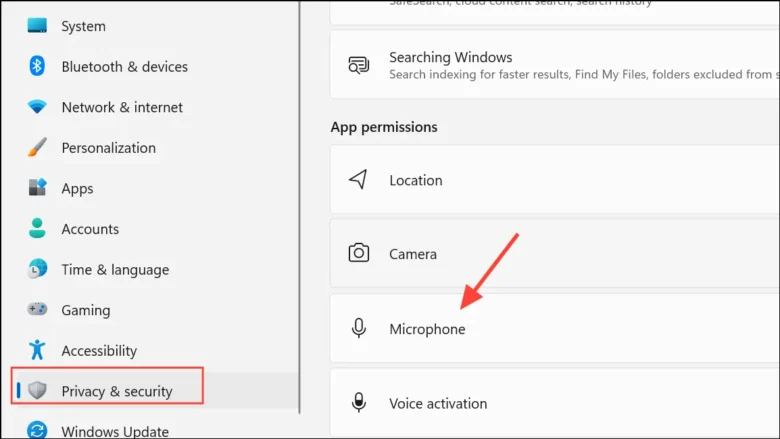
- Click Privacy & security in the left sidebar, then scroll down to the App permissions section and click Microphone.
- Check that Microphone access at the very top is toggled On.
- Confirm that Let apps access your microphone is toggled On.
- Scroll past the list of Microsoft Store apps until you see the section labeled Let desktop apps access your microphone, and make sure its master switch is toggled On.
- Look inside the desktop app list directly below that toggle (
Google Chrome,Microsoft Edge,Zoom Meetings,Microsoft Teams,Discord) and verify that when a call is active, Windows displays “Currently in use” in red or orange text next to your app. - Press the Back arrow at the top-left of Settings, select Camera under App permissions, and repeat the exact same check—confirming both Camera access and Let desktop apps access your camera are switched On.
- Verification Check: Keep the Settings > Privacy & security > Microphone window open on one half of your screen and open your calling app or browser tab on the other half. The moment your app requests the mic, you will see “Currently in use” appear beneath the app’s name in Settings, confirming the OS privacy gate is open.
- Official Reference: Windows camera, microphone, and privacy — Microsoft Support
Step 2: Fix “Default Device” vs. “Default Communication Device” Routing in mmsys.cpl
Have you ever plugged in a USB microphone, a gaming headset, or a monitor with built-in HDMI speakers, only to find that music plays through your speakers while voice calls go silent?
Windows maintains two separate default audio assignments behind the scenes:
- Default Device: Used for general system sounds, browser videos, music, and games.
- Default Communication Device: Used specifically by voice and video calling apps (Teams, Zoom, Skype, Discord) when they request a voice channel.
If your monitor (which has no microphone or speakers attached) or an unplugged controller is accidentally assigned as your Default Communication Device, your calls will have zero audio even though the main taskbar volume icon looks normal.
How to align your Default Audio and Communication Devices
- Press Windows Key + R on your keyboard to open the Run dialog box, type
mmsys.cpl, and press Enter. This opens the classic Sound Control Panel directly. - On the Playback tab (speakers and headphones), look through the list of connected devices:
- Right-click your actual headphones or speakers and select Set as Default Device.
- Right-click that exact same device a second time and select Set as Default Communication Device so a single green checkmark circle appears next to it.
- Tip for HDMI Monitors: If your computer monitor shows up as an audio playback device and keeps stealing sound whenever your screen wakes from sleep, right-click the monitor entry and choose Disable.
- Click the Recording tab at the top of the Sound window to view all microphones.
- Speak in a normal voice and watch the vertical green level bars on the right side of each microphone listed:
- Identify the microphone whose green bars bounce when you speak.
- Right-click that microphone and select Set as Default Device, then right-click it again and select Set as Default Communication Device.
- Double-click your active microphone to open its Properties window, click the Levels tab, make sure the volume slider is set between 85 and 100, and ensure the small speaker icon next to the slider does not have a red mute circle on it.
- Verification Check: Speak into your microphone while looking at the Recording tab in
mmsys.cpl. You should see the green signal meter rise at least halfway up the bar, and your preferred headset/microphone should display the solid green default checkmark. - Official Reference: Fix microphone problems in Windows — Microsoft Support
Step 3: Turn Off “Exclusive Mode” So Background Apps Cannot Hijack Your Mic or Speakers
By default, Windows allows applications to take Exclusive Control of an audio endpoint. When an app requests Exclusive Mode, it locks the hardware sample rate and blocks every other program on your PC from playing sound or reading microphone input. Furthermore, Windows includes a legacy telephony feature that automatically drops all PC volume by 80% whenever it thinks you are on a phone call.
How to disable Audio Exclusive Mode and automatic volume ducking
- Press Windows Key + R, type
mmsys.cpl, and press Enter to open the Sound window. - On the Recording tab, double-click your active microphone to open its Properties.
- Click the Advanced tab at the far right.
- Under the Exclusive Mode section, uncheck both boxes:
- Uncheck “Allow applications to take exclusive control of this device”
- Uncheck “Give exclusive mode applications priority”
- While on the Advanced tab, check the Default Format dropdown menu and select a standard studio rate—either 16 bit, 48000 Hz (DVD Quality) or 24 bit, 48000 Hz (Studio Quality). (Some older USB audio interfaces fail in web browsers if set to 192000 Hz). Click Apply and OK.
- Switch to the Playback tab in the main Sound window, double-click your default speakers or headphones, go to the Advanced tab, and uncheck both Exclusive Mode boxes there as well.
- Finally, click the Communications tab at the top-right of the main Sound window. Under “When Windows detects communications activity:”, select Do nothing, then click Apply and OK.
| Setting Location in mmsys.cpl | Default Windows Setting | Recommended Troubleshooting Setting | Why This Change Matters |
| Recording > Properties > Advanced > Exclusive Mode | Checked (Enabled) | Unchecked (Disabled) | Prevents background apps (like voice filters or gaming overlays) from locking your mic away from Chrome or Zoom. |
| Playback > Properties > Advanced > Exclusive Mode | Checked (Enabled) | Unchecked (Disabled) | Stops media apps or DAWs from muting your browser and meeting audio when running side by side. |
| Sound > Communications Tab | Reduce the volume of other sounds by 80% | Do nothing | Stops Windows from unexpectedly muting your system audio whenever a voice chat tab opens. |
| Recording > Properties > Advanced > Default Format | Varies by driver (up to 32-bit / 192 kHz) | 16-bit or 24-bit, 48000 Hz | Ensures 100% WebRTC compatibility with Chrome, Edge, Google Meet, and Discord. |
- Verification Check: Open a YouTube video in your browser while simultaneously joining a test call in Zoom, Teams, or Discord. Both programs will now share your microphone and speakers smoothly without muting each other.
- Official Reference: Fix sound or audio problems in Windows — Microsoft Support
Step 4: Fix Muffled, Robotic, or Cutting-Out Voice Caused by Double Noise Suppression
If people on your call say your voice sounds underwater, robotic, or cuts off after the first two words of every sentence, your microphone is suffering from double audio processing.
Modern Windows 11 laptops often ship with hardware-level AI noise cancellation enabled by default (such as Intel Smart Sound Technology, Realtek Audio Console Voice Focus, or Windows Studio Effects). At the same time, apps like Zoom, Microsoft Teams, and Discord (via Krisp) apply their own aggressive software noise suppression. When two noise-cancellation engines filter the same voice stream back-to-back, they mistake parts of your actual voice for background hum and clip your sentences out entirely.
How to disable conflicting Windows Audio Enhancements
- Press Windows Key + I to open Settings, then navigate to System > Sound.
- Scroll down to the Input section and click directly on your active microphone name to open its properties page.
- Locate the Audio enhancements dropdown menu:
- Change it from Device default effects (or Voice focus) to Off.
- If your sound output (speakers/headphones) is crackling or sounding hollow, go back to System > Sound, click your active Output device, and set Audio enhancements and Spatial sound to Off.
- Also check Per-App Volume Mixer (
sndvol.exe): If one specific app has no sound at all while everything else works, press Windows Key + Ctrl + V (or go to Settings > System > Sound > Volume mixer), scroll down the Apps list, and verify that your browser or meeting app is not individually muted or turned down to 1%.
- Verification Check: Record a 5-second voice clip using the built-in Windows Sound Recorder app (
Start > Sound Recorder). Your voice should play back cleanly and at natural volume without cutting out mid-sentence. - Official Reference: Fix audio issues when no sound plays from speakers or headphones — Microsoft Support
Step 5: Unblock Site-Level Permissions and Wrong Hardware Selection in Chrome, Edge, and Firefox
Web browsers maintain their own internal permission list and their own default microphone/camera selector. Even if Windows allows Chrome to use your headset, Google Meet or a browser-based interview platform will fail if Chrome’s internal dropdown is pointing to a disconnected virtual device (or if a browser extension is interfering with WebRTC—if you suspect an extension is breaking a page, see our guide on How to Find Out Whether a Browser Extension Is Causing Website Problems?).
How to reset site permissions and select the right hardware in your browser
- Open your meeting or calling website in Google Chrome or Microsoft Edge.
- Click the View site information icon (the tune sliders icon or lock icon) on the far left of the address bar, directly next to the
https://URL. - Check the toggles next to Camera, Microphone, and Sound:
- Ensure both Camera and Microphone are switched On (or set to Allow).
- If you see a muted speaker icon on the browser tab itself, right-click the browser tab at the very top of the window and click Unmute site.
- Next, verify the exact hardware device the browser is allowed to use:
- In Google Chrome: Type
chrome://settings/content/microphoneinto the address bar and press Enter. At the very top of the page, open the dropdown menu next to the microphone icon and select your actual physical microphone rather than “Default” or a virtual cable. Then visitchrome://settings/content/cameraand select your physical webcam. - In Microsoft Edge: Type
edge://settings/content/microphoneinto the address bar, press Enter, and choose your physical microphone from the top dropdown menu, then repeat atedge://settings/content/camera.
- In Google Chrome: Type
- Refresh the web page (Ctrl + R) so the website re-detects the newly selected hardware.
- Verification Check: When the web page reloads, a small red recording indicator dot (or camera/microphone icon) will appear on the browser tab and in your Windows system tray (bottom-right corner), confirming the browser has an active hardware stream.
- Official Reference: Use your camera and microphone in Chrome — Google Help
Step 6: Fix a Black Webcam Screen or Error 0xA00F4244 (NoCamerasAreAttached)
If opening the built-in Windows Camera app displays a solid black or gray screen, an icon of a camera with a slash through it, or error code 0xA00F4244, Windows either cannot see the physical camera sensor on the internal USB bus or the lens is blocked by a hardware privacy mechanism.
Step-by-step hardware and driver recovery for built-in and USB webcams
- Check the Physical Privacy Slider and Keyboard Kill Switch:
- Inspect the top bezel of your laptop screen right above the camera lens. Many laptops have a tiny plastic sliding shutter that blends into the black frame—slide it to the open position if you see a red dot or patterned cover over the lens.
- Check your laptop’s top function-key row (
F1throughF12) for an icon showing a camera with a slash through it (commonlyF8on Lenovo ThinkPads/IdeaPads,F10on ASUS laptops, or a dedicated side switch on HP Spectre/Envy models). Press that key (orFn + that key) once to re-enable the internal camera circuit.
- Check Windows 11 Advanced Camera Multi-App Settings:
- Open Settings (
Windows Key + I) > Bluetooth & devices > Cameras. - Click your connected camera, scroll to the bottom, click Advanced camera options, and turn On “Allow multiple apps to use camera at the same time” (available on Windows 11 24H2 and newer builds) or click Reset if the camera stream is frozen.
- Open Settings (
- Reset the Camera Driver in Device Manager:
- Right-click the Windows Start button and select Device Manager (or press Windows Key + R, type
devmgmt.msc, and press Enter). - Expand the Cameras section (or Imaging devices). If you do not see Cameras at all, click View > Show hidden devices in the top menu bar, then click Action > Scan for hardware changes.
- Right-click your Integrated Camera (or USB Webcam) and select Disable device, click Yes, wait 5 seconds, then right-click it again and select Enable device.
- If the camera broke right after a Windows Update, right-click the camera, select Properties > Driver, and click Roll Back Driver (if available)—or click Uninstall device (leave “Attempt to remove the driver for this device” unchecked) and restart your PC so Windows reinstalls a clean inbox UVC driver.
- Verification Check: Click the Start menu, type Camera, and open the built-in Windows Camera app. Confirm that the white/green indicator LED next to your webcam lens lights up and a live video preview appears.
- Official Reference: Camera doesn’t work in Windows — Microsoft Support and Manage cameras with Camera settings in Windows 11 — Microsoft Support
Step 7: Restart the Windows Audio Services and Roll Back Faulty Audio Drivers
If your taskbar speaker icon shows a red “X” (“No Audio Output Device is Installed”) or your entire computer has lost sound and microphone input across all applications simultaneously, the background Windows audio engine has either stopped running or a third-party audio driver update has crashed.
Part A: Restart Audiosrv and AudioEndpointBuilder
- Press Windows Key + R, type
services.msc, and press Enter to open the Windows Services console. - Scroll down the alphabetical list to find two critical services:
- Windows Audio (
Audiosrv) - Windows Audio Endpoint Builder (
AudioEndpointBuilder)
- Double-click Windows Audio Endpoint Builder first, verify that its Startup type is set to Automatic, and click Start (if it is already running, right-click it in the list and select Restart).
- Next, right-click Windows Audio and select Restart, then confirm that both services show Running in the Status column.
Part B: Switch from a broken third-party driver to Microsoft’s High Definition Audio Device driver
If restarting the audio services does not bring your sound or microphone back, test replacing the manufacturer driver (such as Realtek or Intel Smart Sound) with Microsoft’s built-in generic audio driver:
- Right-click the Start button and open Device Manager (
devmgmt.msc). - Expand Sound, video and game controllers.
- Right-click your main audio chip (usually Realtek(R) Audio or High Definition Audio Device) and select Update driver.
- Click Browse my computer for drivers.
- Click Let me pick from a list of available drivers on my computer.
- Select High Definition Audio Device (the generic Microsoft driver) from the list, click Next, click Yes if a driver compatibility warning appears, and restart your PC when prompted.
- Verification Check: After restarting, click the speaker icon on your taskbar and drag the volume slider. Your speakers or headphones should immediately chime, and your microphone input will reappear under Settings > System > Sound.
- Official Reference: Fix sound or audio problems in Windows (Driver & Service Steps) — Microsoft Support
Safety Warnings: 3 Common Mistakes to Avoid
- Do not download “Driver Updater” tools from third-party websites: Third-party driver utilities frequently install mismatched audio codecs that overwrite OEM laptop microphone array configurations (especially on modern Intel/AMD laptops with digital dual-array microphones), leaving your built-in mic completely dead. Always use Windows Update or your laptop manufacturer’s official support page.
- Do not plug a single-plug 3.5mm headset (TRRS) into a desktop PC’s pink/green dual ports without a Y-splitter: Most smartphones and laptops use a single combined 4-pole (TRRS) audio jack for both headphones and mic, whereas desktop PC cases often have two separate 3-pole (TRS) jacks (green for headphones, pink for microphone). Plugging a single headset plug into the green desktop port will give you sound in your ears, but your microphone will remain physically disconnected until you use a $5 TRRS-to-dual-TRS Y-splitter adapter.
- Do not blame your microphone if your internet upload speed is dropping packets: If your microphone works fine in the Windows Sound Recorder app, yet people on Zoom or Google Meet say your voice freezes or drops out every 15 seconds, the problem is wireless packet loss or low upload bandwidth—not your microphone hardware. Follow our step-by-step network diagnostic guide on How to Check Whether Slow Internet Is Caused by Wi-Fi or Your Internet Provider? to test your upload connection.
Frequently Asked Questions (FAQ)
Why does my Bluetooth headset sound crystal clear when watching videos, but turns low-quality and mono as soon as I join a voice call or game?
Standard Bluetooth connections do not have enough wireless bandwidth to transmit high-bitrate stereo output and microphone input at the same time. The moment an app (like Discord, Zoom, or a multiplayer game with voice chat) activates the built-in microphone on your Bluetooth headphones, the headphones automatically switch from the high-quality A2DP (Stereo Playback) profile to the low-bandwidth HFP (Hands-Free Profile), which drops audio to mono telephone quality. To keep high-quality stereo sound in your Bluetooth headphones during calls, open Settings > System > Sound > Input and select your laptop’s built-in microphone or a separate USB desk mic as your input device instead of the Bluetooth headset’s mic.
Why is my USB microphone or webcam not detected at all when plugged into a USB hub?
Webcams (especially 1080p/60fps and 4K models) and USB condenser microphones require steady 5V bus power and high USB isochronous bandwidth. Unpowered multi-port USB hubs often run out of power or bandwidth when a mouse, keyboard, and external drive are plugged into the same hub. Always plug your webcam or USB microphone directly into a USB port on your computer’s motherboard or laptop chassis to rule out hub power starvation.
Can an antivirus program block my webcam or microphone without telling me?
Yes. Several third-party security suites (such as Kaspersky, Bitdefender, Norton, and ESET) include dedicated “Webcam Protection” and “Microphone Shield” modules that operate independently of Windows Settings. If Windows Privacy permissions and browser site permissions are both enabled, yet your camera still shows a black frame, open your third-party antivirus dashboard and check its Privacy / Webcam Protection settings to whitelist your browser and video calling app.
Summary Checklist & Official Resources
Before your next important video call or recording session, keep this quick troubleshooting order in mind:
- Confirm both Windows Privacy switches are On (
Settings > Privacy & security > Microphone / Camera), especially the Let desktop apps access… toggle near the bottom. - Set both Default Device and Default Communication Device inside the classic Sound Control Panel (
mmsys.cpl) so calls never route to a silent monitor or disconnected controller. - Uncheck Exclusive Mode on the Advanced tab of your microphone and speakers so background utilities cannot lock your hardware.
- Turn off Windows Audio Enhancements if your voice sounds robotic or cuts out inside apps that already use built-in noise cancellation.
- Check your browser’s address bar lock icon and internal hardware selector (
chrome://settings/content/microphoneoredge://settings/content/microphone) to make sure the website is using the right device.
Official Technical Documentation & Related Menevol Guides
- Fix sound or audio problems in Windows — Microsoft Support
- Fix microphone problems in Windows — Microsoft Support
- Camera doesn’t work in Windows — Microsoft Support
- Windows camera, microphone, and privacy settings — Microsoft Support
- Manage cameras with Camera settings in Windows 11 — Microsoft Support
- Use your camera and microphone in Google Chrome — Google Help
- Related on Menevol: How to Check Whether Slow Internet Is Caused by Wi-Fi or Your Internet Provider?
- Related on Menevol: More Apps & Software Guides
- Related on Menevol: Windows & PC Troubleshooting Guides