When an Android phone starts losing charge rapidly—especially while sitting untouched in a pocket or on a nightstand—a single misbehaving app or stuck background process is often the culprit. Modern Android phones include built-in diagnostic tools that track exactly how much power every application and hardware component consumes.
However, reading the battery usage list takes a little interpretation. The app at the very top of the chart is not always the problem; an app you used on-screen for three hours is supposed to use a lot of power, while an app that used 12% of your battery in the background without ever being opened is a genuine drain.
This guide explains how to check your Android battery usage chart, how to spot the difference between normal active use and abnormal background drain, and how to restrict or fix problem apps across standard Android (Google Pixel, Motorola, Nokia) and Samsung Galaxy (One UI) devices.
Symptoms and Common Causes of App-Related Battery Drain
Before changing app settings, it helps to recognize whether your battery drain is caused by software behavior or normal hardware demand.
Common Symptoms of a Rogue App
-
Rapid standby drain: Your phone loses 15% to 30% of its charge overnight while the screen is off.
-
Unexplained warmth: The phone feels warm in your pocket when you are not running heavy tasks.
-
Sudden drop in daily endurance: A phone that easily lasted all day yesterday suddenly needs a charger by mid-afternoon without any change in your routine.
Why Apps Suddenly Start Draining Power
-
Stuck Background Tasks (Wakelocks): Android normally puts your phone into a low-power sleep state called Doze when the screen is off. If an app has a coding bug or a stuck sync process, it can hold a “wakelock” that prevents the processor from sleeping.
-
Faulty App Updates: A recent update from the Google Play Store may introduce a bug that causes an app to repeatedly crash and restart in the background.
-
Continuous Location or Network Polling: Apps with “Allow all the time” location access or constant background data syncing—Especially when you are in an area with a weak cellular signal—force the phone’s antennas and GPS to work overtime.
-
Post-Update System Indexing: Immediately after a major Android OS update or setting up a new phone, the system works in the background to index files and optimize apps. Google notes that battery optimization can take several days (and up to a couple of weeks on a new or freshly reset Pixel) to settle completely.
Safe Preliminary Checks
Start with three quick, non-destructive steps before restricting individual apps. Often, a temporary process is simply stuck in memory.
-
Restart Your Phone: A reboot clears temporary memory and terminates stuck background processes. On most Android phones, press and hold the Power button (or Power + Volume Up on Pixel 6 and newer, and Side button + Volume Down on Samsung Galaxy phones) and tap Restart.
-
Update All Apps in Google Play: Developers frequently release quick patches when an update causes battery drain. Open the Google Play Store app, tap your Profile icon in the top right corner, go to Manage apps & device, and tap Update all under “Updates available”.
-
Check for Charging and Heat Issues: Remove your phone from direct sunlight or hot environments, as heat accelerates battery loss even when idle. Also verify that your phone is charging to 100% properly so you are not mistaking a charging failure for a battery drain.
Step-by-Step: How to Find Which App Is Draining Your Battery
Menu names vary depending on who manufactured your phone. Follow the section below that matches your device.
Method 1: Standard Android and Google Pixel (Android 12 to Android 16+)
Google Pixel phones and devices that use near-stock Android (such as Motorola) organize battery statistics by both apps and system components.
-
Open your phone’s Settings app.
-
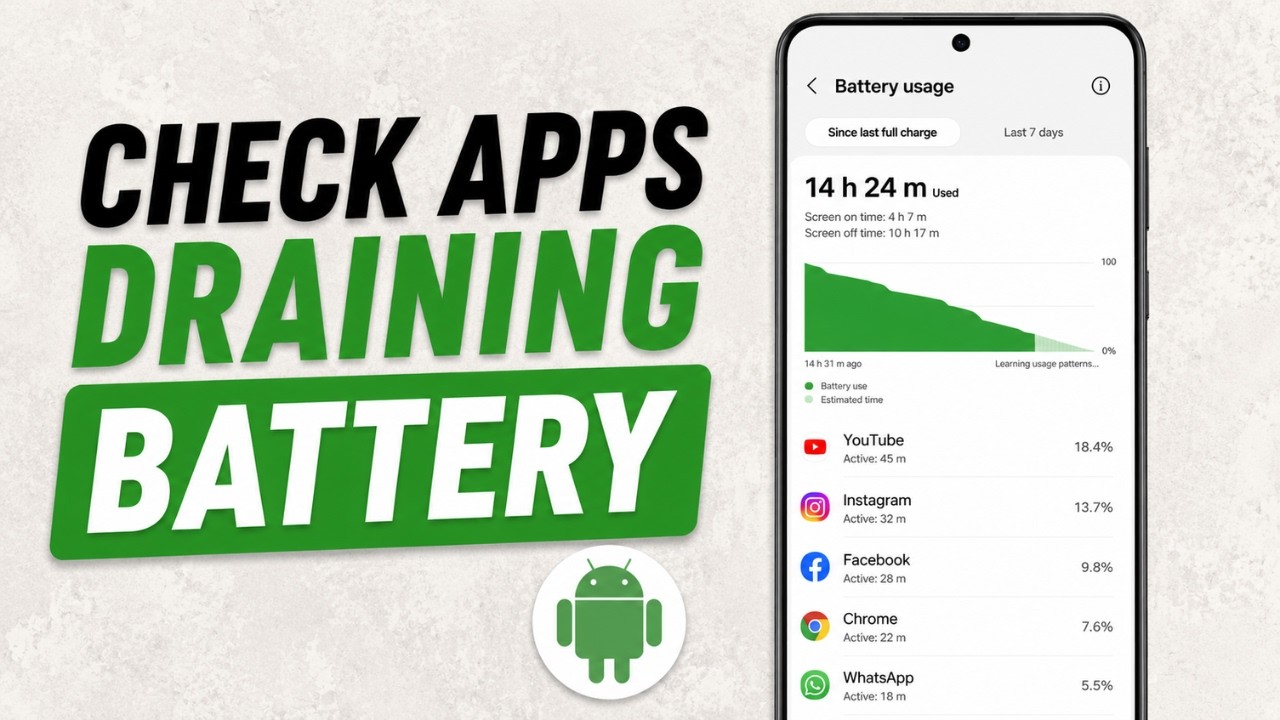
Tap Battery, then tap Battery usage.
-
Look at the timeline graph at the top of the screen. By default, it shows usage since your last full charge. (Tip: You can tap a specific two-hour time slot on the graph to isolate what drained your battery during that exact window, such as between 2:00 AM and 4:00 AM.)
-
Scroll down to view the breakdown. Ensure View by apps is selected.
-
Tap any app near the top of the list to inspect its details. Look closely at two numbers:
-
Screen time: How long the app was actively open on your screen.
-
Background time: How long the app ran while minimized or while your screen was off.
-
-
To see system-level hardware and OS drain, switch the filter or toggle from View by apps to View by systems. This reveals how much power was used by the Screen, Mobile network, Wi-Fi, and Android OS.
Note for Pixel 6 and newer: You can also open Settings, tap Battery, go to Battery diagnostics, and select Battery draining too quickly for automated guided checks.
Method 2: Samsung Galaxy Phones (One UI)
Samsung groups its battery monitoring tools inside the Device care (or Battery and device care) menu.
-
Open Settings.
-
Scroll down and tap Battery and device care (or simply Battery or Device care on newer One UI versions), then tap Battery.
-
Tap the Battery usage graph (or View details) to see the itemized list of apps.
-
Review the list of apps ordered by percentage of battery consumed.
-
Tap on a specific app to view its exact breakdown:
-
Active time: Time spent actively using the app on screen.
-
Background usage time: Time the app spent running behind the scenes.
-
-
Check Samsung App Issue History: Go back to the main Battery and device care screen and tap the Diagnostics / App issue history icon (often a small chart icon in the top-right corner). Samsung logs apps that recently caused high background battery usage or repeated crashes here.
How to Interpret the Numbers (Active vs. Background Drain)
Finding the highest percentage is only half the task. Use this comparison to identify whether an app is actually misbehaving:
| Usage Pattern in Battery Settings | What It Means | Recommended Action |
| High Screen Time, Low Background Time (e.g., 2 hours on screen, 10 minutes background) | Normal behavior. Video streaming, 3D games, navigation, and social media feeds naturally use high power while you watch or interact with them. | Lower screen brightness or limit active session length; no app fix needed. |
| Low Screen Time, High Background Time (e.g., 2 minutes on screen, 4 hours background) | Abnormal background drain. The app is staying awake, syncing, or using location services while you are not using it. | Restrict background battery usage or force stop the app. |
| Zero Screen Time, Noticeable Battery % (App never opened, used 8% overnight) | Rogue background process. The app is waking the phone during standby. | Set the app to Restricted (Pixel/Android) or Deep Sleep (Samsung), or uninstall it. |
| High “Mobile Network” or “System” % | Signal or OS drain. Your phone is struggling to maintain a weak cellular connection, or Google Play Services is syncing heavily. | Switch to Wi-Fi, enable Airplane mode in dead zones, or restart the phone. |
How to Stop a Draining App (From Mildest to Strongest Fix)
Once you identify an app with unusually high background time, apply these fixes in order. Start with the least disruptive option.
Step 1: Restrict Background Battery Usage (Recommended First Step)
Android lets you control how much freedom an app has when it is not on your screen.
On Standard Android / Google Pixel:
-
Open Settings, tap Apps, tap See all apps, and select the problem app.
-
Tap App battery usage. (On Android 14 and newer, ensure Allow background usage is toggled on if you want to see the sub-options, or toggle it off to restrict completely.)
-
Understand the three standard Android modes:
-
Unrestricted: Allows the app to run in the background without limits. This consumes the most battery and should only be used for critical alarm or accessibility tools.
-
Optimized (Recommended default): Lets Android manage background activity automatically based on how often you use the app.
-
Restricted: Prevents the app from using battery in the background. Expected result: The app will stop draining power when closed, though notifications from that app may be delayed until you open it.
-
On Samsung Galaxy (Sleeping and Deep Sleeping Apps):
-
Open Settings, go to Battery and device care, and tap Battery.
-
Tap Background usage limits.
-
Toggle on Put unused apps to sleep.
-
Choose between two manual restriction lists:
-
Sleeping apps: Apps on this list will only run in the background occasionally. Notifications may be slightly delayed.
-
Deep sleeping apps: Apps on this list never run in the background and will not receive updates or send notifications until you actively tap and open them. Tap + in the top corner to add non-essential battery drainers here.
-
Step 2: Force Stop a Stuck App
If an app that normally behaves well suddenly spikes in battery use today, it may simply be frozen in a background loop.
-
Open Settings, go to Apps, and select the offending app.
-
Tap Force stop at the bottom or top of the screen, then tap OK to confirm.
-
What this does: It completely shuts down all current processes for that app without deleting your account login or saved data. The app will remain stopped until you open it again.
Step 3: Tightening Location and Background Data Permissions
Sometimes an app drains battery because you granted it “Allow all the time” GPS access when you only need it while the app is open (such as a store locator, weather widget, or food delivery app).
-
Go to Settings, tap Apps, select the app, and tap Permissions (or Location).
-
Change Location access from Allow all the time to Allow only while using the app or Ask every time.
Step 4: Clear the App Cache (Or Uninstall and Reinstall)
If an app continues to drain battery after updates and restarts, its temporary files may be corrupted.
-
Go to Settings, tap Apps, select the app, and tap Storage & cache (or Storage).
-
Tap Clear cache. (This is completely safe and does not erase personal data or logins.)
-
If the drain still persists and you do not need the app, return to the app info screen and tap Uninstall. (Note: When removing an app from your home screen, be sure to tap Uninstall rather than Remove—tapping Remove only deletes the shortcut icon while leaving the app installed on your phone.)
How to Verify Whether the Fix Worked
Do not judge battery life within ten minutes of changing a setting. Use a clean test window to confirm the problem is solved:
-
Charge your phone to 100% (or at least above 90%) so the battery usage graph resets or creates a clear reference point.
-
Perform an overnight standby test: Leave the phone unplugged for 6 to 8 hours overnight with the screen off. A healthy phone with no rogue background apps should typically lose only a small percentage of charge overnight.
-
Re-inspect the Battery Usage menu: The next day, go back to Settings, tap Battery, and open Battery usage. Tap on the app you restricted. Its Background time should now read zero or just a few minutes.
Alternative Solutions If No Single App Is to Blame
If your battery usage list shows small, normal percentages for every app (for example, 2% to 5% each) yet your battery still drains rapidly, the cause is usually system-wide:
-
Turn On Adaptive Battery: Go to Settings, tap Battery, tap Battery Saver (or Background usage limits), and open Adaptive Battery. Make sure Use Adaptive Battery is turned on so Android automatically limits apps you rarely open.
-
Check Mobile Network Signal: Under View by systems in your battery usage menu, check Mobile network. If it accounts for 20% to 40% of your drain, weak cell reception is forcing your phone’s modem to boost power. Connect to Wi-Fi and enable Wi-Fi Calling when indoors.
-
Use Safe Mode to Isolate Third-Party Apps: Rebooting into Android Safe Mode temporarily disables all downloaded third-party apps. If your battery life is completely normal in Safe Mode, one of your downloaded apps is definitely the cause, even if it hides behind a system process like audio or location services.
-
Shorten Screen Timeout and Enable Dark Theme: On OLED screens, switching to Dark theme and setting Screen timeout to 30 seconds or 1 minute significantly reduces display power consumption.
Safety Warnings: What You Should Avoid Doing
When troubleshooting Android battery drain, well-meaning advice on forums often leads users to break important phone features. Avoid these common mistakes:
-
Do NOT install third-party “Battery Saver,” “RAM Booster,” or “Task Killer” apps: Android manages memory automatically. Third-party task killers repeatedly force-close apps that Android immediately has to reload from scratch, which actually consumes more CPU power and drains your battery faster.
-
Do NOT restrict or force-stop critical system apps: Never restrict or force-stop Google Play services, Android System, your Phone/Dialer app, or your primary Alarm Clock app. As Google’s official documentation warns, force-stopping essential system services can cause your phone to malfunction, break notifications, or prevent emergency calls and alarms from working.
-
Do NOT restrict apps you rely on for instant alerts: If you place WhatsApp, Gmail, medical monitoring apps, or two-factor authentication apps into Restricted or Deep Sleep mode, you may miss important messages, calls, or health alerts until you manually open the app.
-
Do NOT immediately perform a Factory Data Reset: A factory reset erases all photos, messages, files, and downloaded apps on your phone. Treat a factory reset only as a last resort after all app restrictions, OS updates, and Safe Mode tests have failed, and always back up your data first.
Practical Prevention Habits
To keep rogue apps from draining your battery in the future:
-
Keep “Optimized” as the Default: Leave standard apps on Optimized battery usage rather than Unrestricted.
-
Allow Android to Manage Unused Apps: Both standard Android and Samsung One UI include an option under Settings > Apps to automatically remove permissions and hibernate apps you haven’t opened in several months.
-
Watch for Android’s Built-In Drain Alerts: Keep Adaptive Battery enabled; if an app suddenly causes abnormal background drain, Android will send a system notification offering to restrict it with one tap.
Frequently Asked Questions (FAQ)
1. Why is “Google Play services” at the top of my battery usage list?
Google Play services is a core system framework that handles location requests, account syncing, push notifications, and security checks for almost all other apps on your phone. You cannot uninstall or force-stop it on most devices. When Google Play services shows unusually high battery drain, it is usually because another app is repeatedly requesting your GPS location or syncing data through it, or because a system update is stuck. Restart your phone, update all apps in the Google Play Store, and check which third-party apps have “Allow all the time” location permission.
2. Does swiping away apps from the Recent Apps screen save battery?
Usually, no. When you leave an app on Android, the system quickly suspends its background activity so it uses virtually no CPU power while waiting in memory. Swiping every app closed forces your phone’s processor and storage to reload the entire app from scratch the next time you open it, which uses more energy. You should only swipe away or Force stop an app when it is frozen, malfunctioning, or actively showing abnormal background battery drain.
3. Why does my battery drain faster for a few days after an Android software update?
After a system update, Android re-optimizes installed applications, indexes local files, and recalibrates Adaptive Battery usage patterns in the background. According to Google Support, this extra background work is normal and usually settles down after a few days of regular use. Keep your phone updated in the Google Play Store and give it 3 to 5 days before making drastic settings changes.
4. What is the difference between “Optimized” and “Restricted” battery settings?
Optimized is the recommended default setting; it allows an app to send timely notifications and perform brief background syncs while using Android’s Doze and App Standby features to prevent excessive drain. Restricted blocks the app from running in the background altogether. Restricted saves the most battery for games, shopping apps, or tools you rarely use, but it can delay or block notifications until you actively open the app.
Conclusion
Tracking down a battery-draining Android app comes down to checking Settings > Battery > Battery usage (or Battery and device care on Samsung) and comparing Screen time against Background time. When an app consumes significant power behind the scenes without being opened, switching its battery setting to Restricted (or Deep Sleep on Galaxy phones), updating it via Google Play, or revoking constant location access will restore your phone’s normal daily endurance without risking your data.
C. Verified Direct Official Sources
-
Source Title: Fix battery drain problem – Pixel Phone Help
-
Publisher: Google Support
-
Direct URL:
[https://support.google.com/pixelphone/answer/6090599?hl=en](https://support.google.com/pixelphone/answer/6090599?hl=en) -
What the Source Supports: Official steps to check battery usage by app (
Settings > Battery > Battery usage > View by apps), toggling between apps and systems, restricting background usage, keeping “Optimized” turned on, Force stopping problem apps, warnings that Google Play services cannot be force-stopped or uninstalled, warning that force-stopping essential services can cause the phone not to work correctly, and Pixel 6+ Battery diagnostics menu (Settings > Battery > Battery diagnostics). -
Verification Status: Verified via web retrieval tool; direct official Google Help URL confirmed active and accurate.
-