There is nothing quite as disruptive as tapping an app only to watch it instantly crash back to your home screen or freeze mid-task. Whether it affects a single program like Instagram or causes multiple apps to fail simultaneously, unexpected app closures are among the most common software headaches on Android.
While sudden crashes often feel random, they are almost always triggered by specific software bottlenecks: a corrupted local cache, an outdated core system component like Android System WebView, low operational memory, or background permission conflicts.
This guide provides a safe, structured troubleshooting workflow to identify why your Android apps are closing and get them running reliably again without putting your personal data at risk.
Understanding Why Android Apps Crash
When an application closes without warning, Android has usually terminated the process to protect system stability. The most frequent causes include:
-
Corrupted Cache or Data: Temporary files stored locally can become damaged or conflict with newer server-side updates, triggering an instant shutdown on launch.
-
Outdated Android System WebView or Chrome: Many modern applications use Android System WebView to display web-based content directly inside the app. When WebView or Google Chrome has an unpatched bug or pending update, every app relying on that component can crash in rapid succession.
-
Critical Storage Depletion: Android requires a working buffer of free internal storage (typically 10% or at least 2 GB to 3 GB) to process virtual memory swap files. If your internal drive is completely full, apps cannot write temporary data and will shut down immediately.
-
Memory (RAM) Overload: Older devices or phones running memory-intensive 3D games and heavy background trackers may run out of working RAM, forcing the Android Low Memory Killer (LMK) daemon to terminate foreground applications.
-
Version Incompatibility: If your device is running an older Android version that an updated app no longer actively supports, syntax errors and library mismatches will cause force-closures.
Safe Preliminary Checks
Before adjusting settings or clearing application storage, begin with these three rapid, non-destructive checks:
-
Restart Your Phone: A system reboot clears active RAM, terminates background memory leaks, and shuts down runaway processes. Press and hold the Power button (or Power + Volume Up on Google Pixel and modern Android devices; Side button + Volume Down on Samsung Galaxy phones) and tap Restart.
-
Verify Your Internet Connection: Many online-dependent apps close immediately if they encounter an unhandled network timeout during their boot handshake. Toggle Airplane mode on for 10 seconds, toggle it off, and verify you have a strong Wi-Fi or cellular data connection.
-
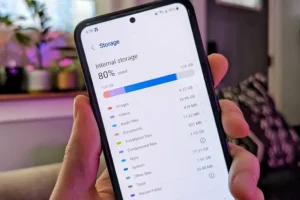
Check Internal Free Storage: Navigate to Settings > Storage. If your device shows less than 2 GB of available space, your apps are likely failing due to write errors. Free up basic space by removing disposable files or unneeded downloads before moving forward.
Step-by-Step Troubleshooting Guide
Follow these steps in sequential order, starting with the least invasive solutions.
Step 1: Force Stop and Clear the App Cache
When an app starts crashing out of nowhere, its temporary cache files are the most probable culprit. Clearing the cache removes temporary junk without erasing your accounts, game saves, or login details.
-
Open your phone’s Settings app.
-
Tap Apps (or Apps & notifications), then tap See all apps.
-
Locate and tap the malfunctioning app.
-
Tap Force stop, then tap OK to ensure no frozen threads remain active.
-
Tap Storage & cache (or Storage).
-
Tap Clear cache.
-
Test the fix: Return to your home screen and open the app. If it launches and remains stable, the issue was an invalid cache file.
Step 2: Update the Crashing App, Chrome, and Android System WebView
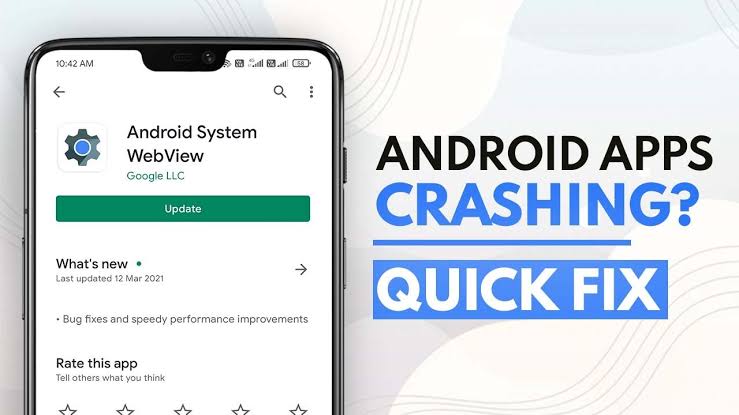
A widespread app crash issue across Android is almost always linked to Google Play updates. Specifically, Android System WebView functions as the internal browser engine for hundreds of third-party apps.
-
Open the Google Play Store app.
-
Tap your Profile icon in the top right corner.
-
Tap Manage apps & device.
-
Under the “Overview” tab, tap Updates available (or tap Update all).
-
Pay special attention to these three items and ensure they are fully updated:
-
The specific application that is crashing.
-
Android System WebView
-
Google Chrome
-
-
Once the installations finish, reboot your phone and test the application again.
Step 3: Check for Pending Android System Updates
If an app update requires system libraries introduced in a recent security patch or OS update, the app will continue to close until your operating system catches up.
-
Open Settings.
-
Scroll down and tap System (or Software update on Samsung Galaxy phones).
-
Tap System update (or Download and install).
-
If an update is pending, connect to Wi-Fi, install the update, and allow the device to reboot.
Step 4: Clear App Storage / App Data (Targeted Reset)
If clearing the cache did not solve the issue, the application’s underlying database or local user settings file may be corrupted.
Caution: Tapping “Clear storage” or “Clear data” resets the selected application back to its fresh-out-of-the-box state. You will need to log back into your account, and any local, un-synced data (such as offline draft documents or locally saved media) will be removed.
-
Open Settings > Apps > See all apps.
-
Select the crashing app.
-
Tap Storage & cache.
-
Tap Clear storage (or Clear data) and confirm with Delete.
-
Relaunch the app, enter your credentials, and observe whether it remains open.
Step 5: Isolate Third-Party Conflicts Using Safe Mode
If multiple apps are closing unexpectedly or an app crashes only after another tool runs in the background, a third-party service—such as an aggressive battery optimizer, a custom overlay launcher, or a third-party antivirus—may be killing background processes. Android’s built-in Safe Mode temporarily disables all third-party downloads to isolate system stability.
-
Press and hold your phone’s Power hardware button until the power menu appears on your display.
-
Touch and hold the on-screen Power off or Restart icon until the “Reboot to safe mode” prompt displays.
-
Tap OK. The device will restart with the words “Safe mode” visible in the bottom-left corner of the display.
-
Evaluate: While in Safe Mode, open default pre-installed apps (such as Chrome, Messages, or Camera). If your phone operates smoothly with zero unexpected closures, an app you downloaded recently is interfering with the operating system.
-
Exit Safe Mode: Restart your phone normally to exit Safe Mode, then uninstall any recently downloaded cleaners, VPNs, or utility apps one by one.
Step 6: Reset App Preferences
If system permissions, background restrictions, or default app handlers have become misconfigured, apps will abruptly fail when attempting to access hardware features (like your microphone, camera, or network sockets). You can restore app settings without touching your personal photos, files, or messages.
-
Open Settings.
-
Tap System > Reset options (on Samsung: Settings > General management > Reset).
-
Tap Reset app preferences.
-
Confirm by tapping Reset apps.
-
What this does: This restores disabled apps, default app selections, background data restrictions, and permission prompts back to standard Android defaults without deleting any of your personal user data.
What to Avoid Doing
When trying to stop apps from closing unexpectedly, avoid these common and potentially damaging mistakes:
-
Do NOT install “RAM Boosters” or “Task Killer” utilities: Android handles process allocation automatically. Task killers forcefully kill background services that the operating system immediately tries to reopen. This cycle depletes battery life, causes severe system lag, and increases the frequency of app crashes.
-
Do NOT download APK installers from unofficial websites: If an app is crashing, avoid downloading older or modified
.apkfiles from unknown web mirrors. These files bypass Google Play Protect verification, can contain malware, and frequently create deeper OS conflicts. -
Do NOT rush into a full Factory Data Reset: A factory reset erases all photos, messages, accounts, and downloads on your phone. It should only be considered as a last measure when core operating system components continuously crash across Safe Mode and standard environments.
Frequently Asked Questions (FAQ)
Why do all my Android apps keep closing at the same time?
When multiple unrelated apps crash simultaneously, the issue is almost always a bug in a shared system framework—most commonly Android System WebView or Google Play services. Open the Google Play Store, check for pending updates, and install the latest versions of Android System WebView and Google Chrome. If an update recently triggered the issue, you can also navigate to Settings > Apps > Android System WebView, tap the three dots in the top-right corner, and select Uninstall updates as a temporary workaround until a hotfix is released.
What is the difference between “Clear Cache” and “Clear Storage”?
“Clear Cache” removes temporary loading assets (such as cached profile pictures, web thumbnails, and temporary stylesheets). It is completely non-destructive and leaves your account logins and personal preferences intact. “Clear Storage” (or “Clear Data”) completely wipes the app’s internal folder, deleting saved databases, preferences, and account tokens, returning the app to the state it was in when first downloaded.
Why does an app close immediately every time I try to open it?
An instantaneous crash upon opening usually points to a startup check failure—such as a corrupted database, lack of required app permissions, or insufficient operational storage on your device. First, verify your phone has at least 2 GB to 3 GB of free space, then force stop the app and clear its cache. If the instant closure persists, uninstall and reinstall the application from the Google Play Store.
Will uninstalling and reinstalling an app fix sudden crashes?
Yes, reinstalling an application is one of the most reliable ways to solve persistent crashing. It purges old, incompatible configuration files and downloads the newest, fully patched build designed for your device’s current software version. Before doing so, ensure your application data is backed up to an associated cloud account if applicable.
Summary
When Android apps close unexpectedly, working from non-invasive fixes up to deeper resets is the safest path forward. Start with a clean device restart and clear the affected app’s cache. If multiple applications are crashing at once, check the Google Play Store for immediate updates to Android System WebView and Google Chrome. By keeping your internal storage above 10% capacity and avoiding task-killer apps, you will maintain a stable, crash-free Android environment.
C. Verified Direct Official Sources
-
Source Title: Fix an installed Android app that isn’t working – Android Help
-
Publisher: Google Support
-
Direct URL:
[https://support.google.com/android/answer/2668665?hl=en](https://support.google.com/android/answer/2668665?hl=en) -
What the Source Supports: Official troubleshooting sequence for apps that crash, freeze, or won’t open: Restarting device, checking for Android OS updates, updating apps via Google Play, force-stopping problem apps, clearing cache and storage, checking available internal storage space, and contacting the app developer.
-
Verification Status: Verified direct official Google Help documentation for standard Android.
-