When you install a new app from the Google Play Store, it cannot automatically track your location, record audio, or read your text messages. Android’s security architecture requires the app to explicitly ask for your permission. However, it is very easy to tap “Allow” in a rush, inadvertently granting a simple flashlight app access to your microphone, or a generic weather widget the right to track your exact location 24/7.
Over time, this accumulation of granted permissions can lead to two major problems: severe privacy vulnerabilities and excessive battery drain caused by apps constantly polling your GPS or network in the background.
Fortunately, modern Android devices give you granular control over what your apps can and cannot do. This guide will walk you through exactly how to find your app permissions, how to audit them using the Permission Manager, and which settings you should change to protect your personal data.
Why You Should Routinely Audit App Permissions
Every permission you grant acts as an open door between a third-party developer and your personal hardware. While reputable developers only request permissions necessary for the app to function (e.g., Instagram needs your camera to take photos), malicious or poorly optimized apps use unnecessary permissions to harvest data for advertising profiles.
Regularly managing your permissions helps you:
-
Protect your privacy: Stop social media apps from listening to your microphone in the background.
-
Improve battery life: Revoking “Allow all the time” location access prevents apps from constantly waking up your phone’s GPS antenna.
-
Reduce spam: Denying access to your Contacts list prevents aggressive apps from harvesting your friends’ phone numbers for marketing text messages.
Method 1: How to Change Permissions for a Specific App
If you know exactly which app you want to restrict (for example, if Facebook is using too much background battery, or you want to stop a game from seeing your location), you can manage its permissions directly.
On Standard Android (Google Pixel, Motorola, Nokia):
-
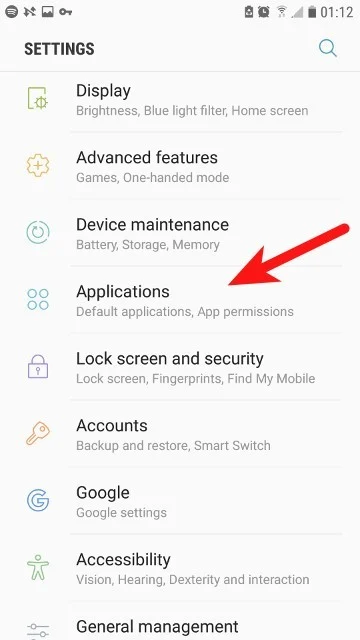
Open your phone’s Settings app.
-
Tap Apps (you may need to tap See all apps to view the full alphabetical list).
-
Scroll down and tap the specific application you want to manage.
-
Tap Permissions.
-
You will see two lists: Allowed (features the app can currently use) and Not allowed (features it cannot use).
-
Tap any permission listed under “Allowed” (such as Camera or Location) to change its access level.
On Samsung Galaxy Devices (One UI):
-
Open Settings.
-
Tap Apps.
-
Select the app from the list.
-
Tap Permissions.
-
Tap on the specific hardware feature you want to restrict and change the toggle or selection.
Method 2: How to Use the Permission Manager (Audit by Feature)
If you want to see a big-picture view of your privacy—such as finding out exactly how many apps have access to your microphone—you should use the Android Permission Manager.
-
Open Settings.
-
Navigate to Security & privacy, then tap Privacy.
-
Tap Permission manager.
-
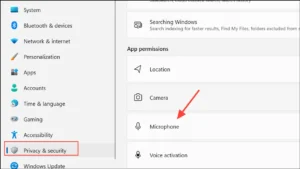
Here, you will see a list of all critical hardware features: Body sensors, Calendar, Call logs, Camera, Contacts, Location, Microphone, SMS, and Storage/Files.
-
Tap a category, such as Camera.
-
The system will display every app installed on your phone that is capable of using the camera, divided into “Allowed all the time,” “Allowed only while in use,” and “Not allowed.”
-
Tap any app in this list to instantly revoke or adjust its access.
Understanding Android Permission Levels
When you tap on a permission to change it, you are usually presented with a few different options. Understanding the difference between these is crucial for balancing functionality and privacy.
-
Allow all the time (Location only): The app can ping your GPS and track your location even when the app is completely closed and your phone is in your pocket. Recommendation: Only grant this to navigation apps like Google Maps or critical weather alerts.
-
Allow only while using the app: The app can only access the feature (like the camera or microphone) when it is actively visible on your screen. The moment you minimize the app, the permission is temporarily suspended. Recommendation: Use this default for 90% of your apps.
-
Ask every time (or Only this time): The app will prompt you with a pop-up every single time you open it. This is highly secure but can become annoying for apps you use daily.
-
Don’t allow (Deny): The app is completely blocked from accessing the feature.
A Note on Precise vs. Approximate Location
Starting with Android 12, Google introduced a critical new toggle inside the Location permission menu called Use precise location.
-
If toggled ON, the app uses GPS to pinpoint your exact street address.
-
If toggled OFF, the app uses cellular towers to determine your general city or zip code (Approximate).
-
Tip: A weather app only needs your approximate location to tell you the forecast. A food delivery or ride-sharing app needs your precise location. Turn “Precise location” off for everything else.
How to Use the Privacy Dashboard (Android 12 and Newer)
If you own a phone running Android 12, 13, or newer, you have access to a powerful auditing tool called the Privacy Dashboard.
-
Go to Settings > Security & privacy > Privacy > Privacy dashboard.
-
This dashboard displays a 24-hour timeline of exactly when your Location, Camera, and Microphone were accessed.
-
Tap Location, for instance, and you will see a minute-by-minute log (e.g., “Google Maps accessed your location at 2:14 PM”).
-
If you spot an app accessing your microphone or location in the middle of the night while you were sleeping, you can tap it directly from the timeline to revoke its permission immediately.
How to Automatically Revoke Unused Permissions
To prevent apps you haven’t opened in months from quietly harvesting data, modern Android versions include an automatic cleanup feature.
-
Go to Settings > Apps > See all apps.
-
Tap on any downloaded application.
-
Scroll down to the bottom of the App Info page.
-
Toggle ON the switch labeled Pause app activity if unused (on older versions, this is labeled Remove permissions and free up space).
-
If you do not open the app for a few months, Android will automatically change all of its permissions back to “Not allowed” and restrict its background battery usage.
Safety Warnings: When NOT to Deny Permissions
While it is tempting to deny everything, revoking certain permissions will break core phone functionality. Keep these safety rules in mind:
-
Do not deny the Microphone or Phone permission to your primary Phone/Dialer app. If you do, you will not be able to make or hear phone calls.
-
Do not deny SMS permissions to your default messaging app (like Google Messages or Samsung Messages), or your text messages will stop sending.
-
Do not revoke Contacts access from WhatsApp or Telegram. These apps rely entirely on your phone’s contact list to show you who you are chatting with; without it, you will only see raw phone numbers instead of names.
-
If an app crashes immediately upon opening, you may have denied a permission that is fundamentally required for its code to run. Go back to its settings and grant “Allow only while using the app” to see if it resolves the crash.
Frequently Asked Questions (FAQ)
Why does a mobile game need access to my phone calls or contacts?
Most simple mobile games do not need access to your phone dialer or contacts. Often, they request these permissions to serve targeted ads, invite your friends, or read your phone’s unique hardware ID for tracking. You should confidently select “Don’t allow” for these requests; the game will almost always function perfectly fine without them.
What happens if I deny a permission an app actually needs?
If you deny the Camera permission to Instagram, the app will not break, but if you try to take a photo within the app, a pop-up will appear explaining that it cannot proceed until you grant the permission. You can always change your mind and re-grant access in the settings later.
Can an app change its own permissions back to “Allowed”?
No. On modern Android operating systems, a third-party app cannot override the system settings and grant itself permissions. The only way a permission status changes is if you manually tap “Allow” on a pop-up prompt or change it within the Settings menu.
How do I know if an app is currently using my camera or microphone?
On Android 12 and newer, a small green indicator dot or icon will appear in the top-right corner of your screen (in the status bar) whenever an app is actively accessing your camera or microphone. If you swipe down from the top of the screen, you can tap the green icon to see exactly which app is using the hardware in real-time.
Conclusion
Managing your Android app permissions is one of the most effective ways to take control of your digital privacy and extend your device’s battery life. By utilizing the Permission Manager and the Privacy Dashboard, you can quickly identify which apps are overstepping their boundaries. Remember the golden rule of app permissions: if an app’s primary function doesn’t rely on a specific hardware feature, it does not need access to it. Default to “Allow only while using the app,” restrict background location access, and let Android automatically revoke permissions for apps you no longer use.
C. Verified Direct Official Sources
-
Source Title: Change app permissions on your Android phone – Android Help
-
Publisher: Google Support
-
Direct URL:
[https://support.google.com/android/answer/9431959?hl=en](https://support.google.com/android/answer/9431959?hl=en) -
What the Source Supports: Official documentation detailing how to change permissions for individual apps (
Settings > Apps > Permissions), how to use the Permission Manager to change permissions by type, explanations of permission levels (All the time, Only while using, Ask every time), and instructions for auto-revoking unused app permissions. -
Verification Status: Verified direct official Google Help documentation URL.
-
-
Source Title: Manage app permissions on your Galaxy phone
-
Publisher: Samsung Support (US)
-
Direct URL:
[https://www.samsung.com/us/support/answer/ANS00092523/](https://www.samsung.com/us/support/answer/ANS00092523/) -
What the Source Supports: Official Samsung One UI menu paths (
Settings > Apps > PermissionsandSettings > Security and privacy > Privacy > Permission manager), confirming the UI differences and steps for Galaxy devices. -
Verification Status: Verified direct official Samsung Support documentation URL.
-
-
Source Title: Understand app permissions – Google Play Help
-
Publisher: Google Support
-
Direct URL:
https://support.google.com/googleplay/answer/6270602?hl=en -
What the Source Supports: Details the behavior of apps when permissions are denied, and confirms that apps cannot change user-denied permissions without a system prompt.
-
Verification Status: Verified direct official Google Play Help documentation URL.
-