Modern web browsers like Google Chrome, Mozilla Firefox, Microsoft Edge, and Apple Safari rely heavily on extensions (or add-ons) to improve functionality. Whether you use them to block advertisements, manage your passwords, or check your grammar, these small software programs actively read and modify the code of the websites you visit. Because web pages are dynamic and constantly updating, a poorly coded or outdated extension can accidentally interfere with a website’s underlying scripts, completely breaking the page layout or disabling critical features.Official Source: https://support.google.com/chrome_webstore/answer/2664769?hl=en
Diagnosing a broken website can be frustrating because it is not always obvious whether the website itself is down or if your local browser is at fault. The most common symptoms of extension interference include unclickable “Submit” buttons on checkout pages, missing images, endless loading circles, or CAPTCHA verification boxes that fail to appear. By systematically disabling these add-ons, you can quickly identify the culprit and restore normal browsing without losing your bookmarks or saved passwords.Official Source: https://support.microsoft.com/en-us/microsoft-edge/add-turn-off-or-remove-extensions-in-microsoft-edge-9c0ec68c-2fbc-2f2c-9ff0-bdc76f46b026
Step 1: The Incognito Test (Safe Preliminary Check)
The fastest and most reliable way to determine if an extension is causing your website problem is to use Private Browsing or Incognito Mode. By default, major browsers disable all third-party extensions when you open a private window to ensure maximum privacy. If a website is completely broken in your normal browser but works perfectly in Incognito mode, you have definitively proven that one of your extensions is causing the interference.Official Source: https://support.google.com/chrome/answer/95464?hl=en
To perform this test on Google Chrome or Microsoft Edge, press Ctrl + Shift + N (or Cmd + Shift + N on a Mac) to open an Incognito window. On Mozilla Firefox, press Ctrl + Shift + P (or Cmd + Shift + P) to open a Private Window. Navigate to the broken website and attempt to perform the action that was previously failing. Verification: If the website buttons click normally and the layout loads perfectly in the private window, close it and proceed directly to Step 2 to hunt down the specific extension.Official Source: https://support.mozilla.org/en-US/kb/private-browsing-use-firefox-without-saving-history
Step 2: Access Your Extension Manager
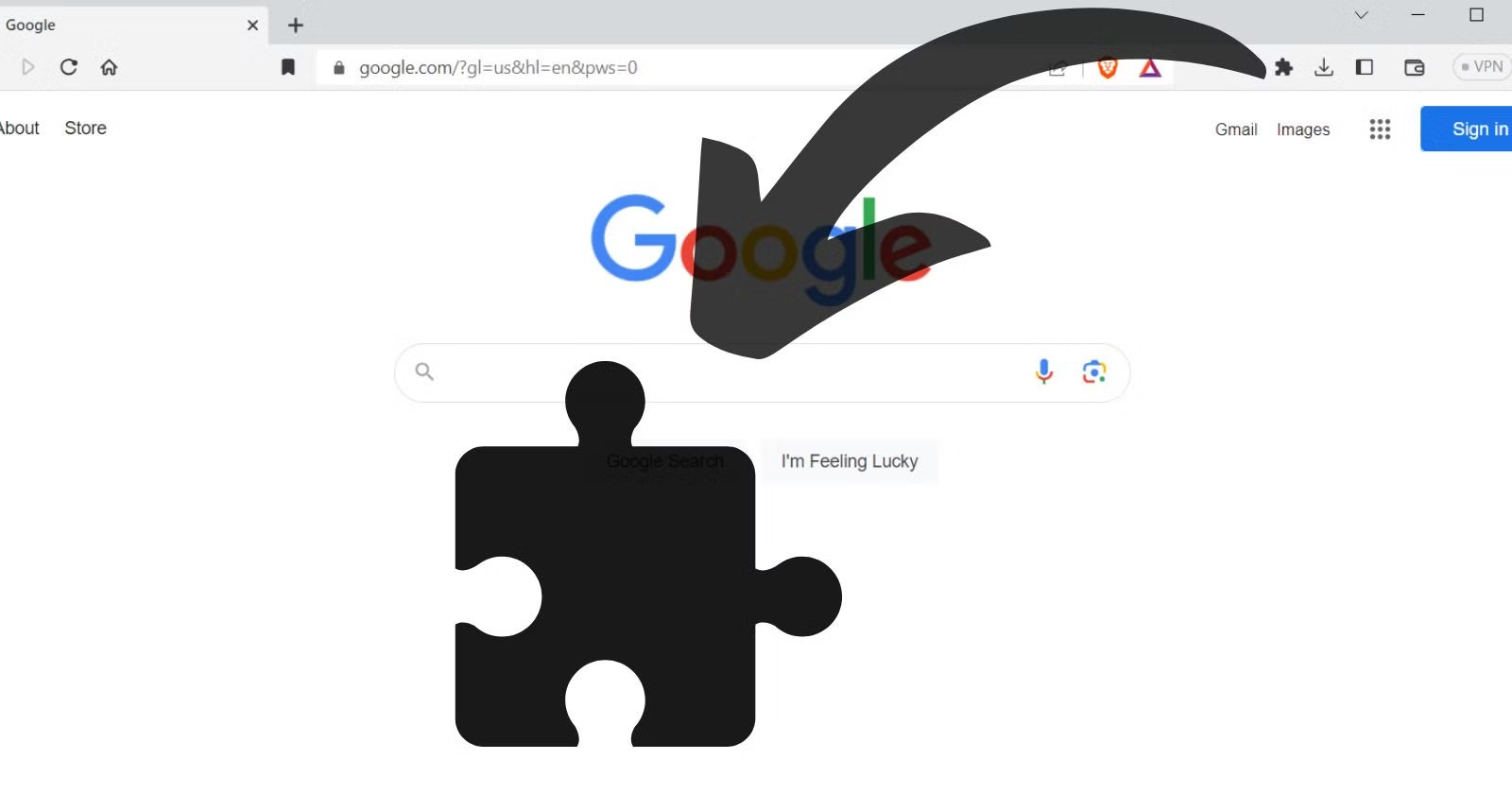
Once you know an extension is to blame, you must open your browser’s extension management dashboard to view everything currently installed and running in the background. On Google Chrome, click the three-dot menu in the top right corner, select Extensions, and click Manage Extensions (or type chrome://extensions/ in the URL bar). On Microsoft Edge, click the puzzle piece icon or the three-dot menu and select Extensions, then Manage extensions. On Firefox, click the hamburger menu and select Add-ons and themes (or type about:addons).Official Source: https://support.google.com/chrome_webstore/answer/2664769?hl=en
When you open this menu, you will see a list of every add-on installed on your browser, accompanied by a small toggle switch next to each one. Do not click “Remove” or “Uninstall” just yet; your goal right now is simply to turn them off temporarily to isolate the exact cause of the website malfunction. Verification: Ensure you are looking at the page with the blue or grey toggle switches, which indicates you have the ability to enable or disable them on the fly.Official Source: https://support.microsoft.com/en-us/microsoft-edge/add-turn-off-or-remove-extensions-in-microsoft-edge-9c0ec68c-2fbc-2f2c-9ff0-bdc76f46b026
Step 3: Perform an Isolation Test (The 50/50 Method)
If you only have two or three extensions, you can simply toggle them off one by one, refreshing the broken website after each toggle. However, if you have ten or twenty extensions installed, use the 50/50 isolation method to save time. Toggle off the first half of your extensions, leaving the bottom half running. Refresh the broken website. If the site is still broken, the culprit is in the bottom half. If the site is fixed, the culprit is in the top half.Official Source: https://support.mozilla.org/en-US/kb/troubleshoot-extensions-themes-to-fix-problems
Continue dividing the suspect group in half, toggling them off and refreshing the website, until you narrow it down to a single extension. In 90% of cases, the offending software will be an Ad Blocker (like uBlock Origin or AdBlock Plus), a privacy shield (like Privacy Badger or Ghostery), or an automatic coupon finder (like Honey or Capital One Shopping), as these aggressively block pop-ups, tracking scripts, and checkout redirects. Verification: You will know you have found the exact culprit when toggling that specific extension OFF fixes the website, and toggling it ON instantly breaks the website again.Official Source: https://support.apple.com/en-us/102462
Step 4: Whitelist the Website or Update the Extension
Once you have identified the specific extension causing the problem, you do not necessarily have to permanently delete it. Most ad blockers and privacy extensions include a “whitelist” or “pause on this site” feature. Click the extension’s icon in your browser’s top toolbar while on the broken website, and look for an option to “Turn off for this site” or “Disable on current domain.” This allows you to keep using the extension for security everywhere else, while granting the broken website the permissions it needs to function.Official Source: https://support.google.com/chrome_webstore/answer/2664769?hl=en
If the extension is not an ad blocker, it may simply be suffering from a software bug that the developer has already patched. Go back to your browser’s extension manager page, enable “Developer mode” (usually a toggle in the top right corner), and click the Update button to force your browser to download the latest code for all your add-ons. Verification: Refresh the website. If it works with the updated extension turned on, you are finished; if it still breaks the site, you must either leave it disabled on that site or click “Remove” to delete it from your browser entirely.Official Source: https://support.microsoft.com/en-us/microsoft-edge/add-turn-off-or-remove-extensions-in-microsoft-edge-9c0ec68c-2fbc-2f2c-9ff0-bdc76f46b026
Step 5: Clear Your Browser Cache and Cookies
Sometimes, even after you completely disable or remove the malfunctioning extension, the website will remain broken. This happens because your browser has saved (cached) the corrupted, broken version of the webpage to your local hard drive to save loading time. To force the browser to download a fresh, uncorrupted copy of the site, you must clear your cache. Press Ctrl + Shift + Delete (or Cmd + Shift + Delete on Mac) to open the “Clear browsing data” menu.Official Source: https://support.google.com/accounts/answer/32050
In the pop-up menu, set the time range to “All time” and check the boxes for “Cookies and other site data” and “Cached images and files.” Uncheck your browsing history and passwords so you don’t lose them, then click Clear data. Verification: Close your browser completely, reopen it, and navigate back to the website. Without the offending extension and with a cleared cache, the site should load flawlessly.Official Source: https://support.mozilla.org/en-US/kb/how-clear-firefox-cache
Safety Warnings: What to Avoid
When troubleshooting extensions, avoid downloading “Extension Manager” utilities from third-party websites that claim to optimize your browser automatically. These tools are frequently disguised malware designed to hijack your search engine or inject unwanted advertisements into your web pages. Furthermore, never grant an extension permission to “Read and change all your data on the websites you visit” unless it comes from a highly reputable, verified developer, as this permission level allows the extension to see your passwords and banking details.Official Source: https://support.google.com/chrome_webstore/answer/2664769?hl=en
Frequently Asked Questions (FAQ)
Why do ad blockers break websites?
Ad blockers and privacy shields work by identifying and blocking specific JavaScript files and tracking pixels as a webpage loads. Unfortunately, many modern websites use those exact same scripts to process shopping cart payments, load embedded videos, or verify human CAPTCHA tests. When the ad blocker mistakenly blocks a critical script, the website’s code breaks, rendering buttons unclickable and formatting unreadable.Official Source: https://support.mozilla.org/en-US/kb/troubleshoot-extensions-themes-to-fix-problems
How do I know if an extension is malware?
Malicious extensions typically cause extreme symptoms: your default search engine suddenly changes (e.g., from Google to Yahoo), new tabs open to spam websites, or you see intrusive pop-up ads on websites that don’t normally have them (like Wikipedia). If you experience these symptoms, immediately open your extension manager, locate any extensions you do not recognize installing yourself, and click “Remove” to delete them from your system.Official Source: https://support.microsoft.com/en-us/microsoft-edge/add-turn-off-or-remove-extensions-in-microsoft-edge-9c0ec68c-2fbc-2f2c-9ff0-bdc76f46b026
Do browser extensions work in Incognito Mode?
By default, all browser extensions are completely disabled in Incognito (Chrome) or Private Browsing (Firefox/Safari) mode. Browsers do this to prevent third-party developers from tracking your private web searches. You can manually allow specific, trusted extensions to run in Incognito mode by visiting the extension manager menu, clicking “Details” on a specific add-on, and toggling on “Allow in Incognito.” Official Source: https://support.google.com/chrome/answer/95464?hl=en