Seeing a bright red screen claiming your computer is infected, or receiving an urgent email warning that your Microsoft account will be suspended, is designed to trigger immediate panic. Scammers rely on this fear to make you act impulsively—tricking you into calling a fake support number, handing over remote access to your computer, or typing your password into a forged login screen. These tech support scams and phishing attempts cost victims billions of dollars globally every year, and the fraudulent alerts are designed to look identical to genuine Microsoft software warnings.
Official Source: https://support.microsoft.com/en-us/windows/protect-yourself-from-tech-support-scams-2ebf91bd-f94c-2a8a-e541-f5c800d18435
Before you click any links, dial any phone numbers, or download any “cleaner” software, you must step back and verify the source. Microsoft operates under a very strict, publicly documented set of communication rules regarding security events. By understanding what Microsoft will never do, and learning how to safely audit your own account activity independently, you can definitively separate a dangerous scam from a legitimate security warning.
Official Source: https://support.microsoft.com/en-us/account-billing/can-i-trust-email-from-the-microsoft-account-team-685fd302-f52f-1a9f-ce52-2df8581239f6
Step 1: Analyze Browser Pop-Ups and Error Messages
The most aggressive form of a fake security alert is a full-screen browser pop-up. You might be reading a news article when your screen suddenly locks up, an alarm sounds, and a pop-up appears claiming “Windows Defender has blocked your computer due to illegal activity.” According to Microsoft’s official policies, genuine Microsoft error and warning messages never include a phone number. If the alert demands that you call a toll-free number immediately to unlock your PC, it is 100% a scam.
Official Source: https://support.microsoft.com/en-us/windows/protect-yourself-from-tech-support-scams-2ebf91bd-f94c-2a8a-e541-f5c800d18435
These pop-ups are not actual viruses; they are just malicious web pages using aggressive JavaScript code to trap your mouse cursor and force your browser into full-screen mode. Do not click anywhere on the page, not even on buttons labeled “Close” or “X”, as these are often disguised links that initiate malicious downloads. Instead, press Ctrl + Alt + Delete on your keyboard, open the Task Manager, find your web browser in the list (e.g., Google Chrome or Microsoft Edge), right-click it, and select End task. Verification: Once the browser is forcefully closed, restart it and ensure it is not set to “Restore previous session.” The alarm and pop-up will be completely gone, proving your PC was never actually infected.
Official Source: https://support.microsoft.com/en-us/windows/protect-yourself-from-tech-support-scams-2ebf91bd-f94c-2a8a-e541-f5c800d18435
Step 2: Verify the Exact Sender Email Address
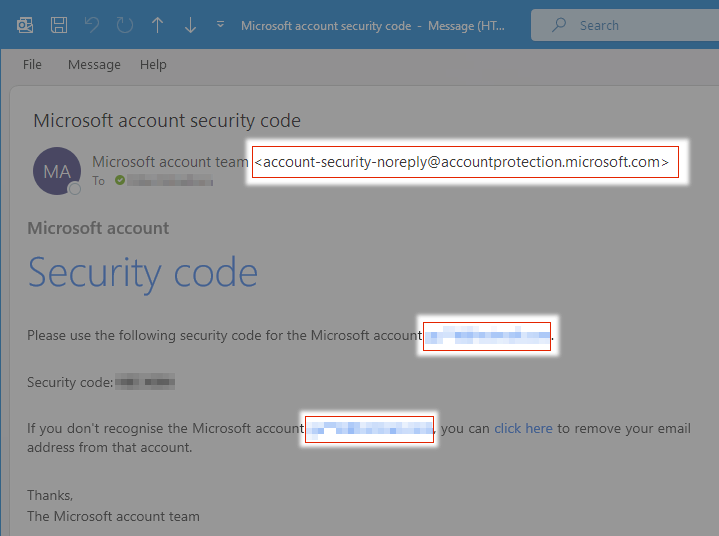
If the security alert arrives via email, scammers will frequently forge the display name to say “Microsoft Account Protection” or “Windows Security Team.” However, they cannot easily forge the actual hidden email address. Click or hover over the sender’s display name to reveal the raw email address behind it. Microsoft states explicitly that genuine security alerts regarding unusual sign-in activity will always come from one highly specific, unalterable email address: account-security-noreply@accountprotection.microsoft.com.
Official Source: https://support.microsoft.com/en-us/account-billing/can-i-trust-email-from-the-microsoft-account-team-685fd302-f52f-1a9f-ce52-2df8581239f6
If the email comes from a Gmail, Yahoo, or Outlook.com address (e.g., microsoft-security-alert-99@outlook.com), or if it comes from a misspelled domain (like @rnicrosoft.com instead of @microsoft.com), it is a phishing attempt. Furthermore, a legitimate Microsoft email will never ask you to reply with your password, nor will it include an urgent attachment (like a PDF or ZIP file) containing a “security report.” Verification: If the sender’s address does not perfectly match the official accountprotection.microsoft.com domain, mark the email as spam and delete it immediately.
Official Source: https://support.microsoft.com/en-us/windows/protect-yourself-from-phishing-0c7ea947-ba98-3bd9-7184-430e1f860a44
Step 3: Check Your Account Activity Manually (The Safest Route)
Even if an email looks perfectly legitimate, the safest habit is to completely ignore the links inside the email. Phishing emails use disguised hyperlinks that look like account.microsoft.com but actually redirect you to a cloned, fake login page designed to steal your password. Instead of clicking the email link, open a new browser tab and type account.microsoft.com directly into the address bar yourself.
Official Source: https://support.microsoft.com/en-us/windows/protect-yourself-from-phishing-0c7ea947-ba98-3bd9-7184-430e1f860a44
Log in with your credentials. Once inside your secure Microsoft account dashboard, click on the Security tab, and then select Sign-in activity. This page logs every successful and failed attempt to access your account, complete with the IP address, browser type, and geographic location. Verification: Scroll through the recent activity list. If you do not see any “Unusual activity” or unauthorized successful logins matching the time the email was sent, the email was a fake phishing attempt trying to scare you.
Official Source: https://support.microsoft.com/en-us/account-billing/what-happens-if-there-s-an-unusual-sign-in-to-your-account-eba43e04-d348-b9d4-0a9f-2178ff05bb4e
Step 4: Scan Your PC Using the Real Windows Security App
If you are still concerned that your computer might actually be compromised, you should bypass the browser completely and use the operating system’s built-in, local security tool. Click the Windows Start button, type Windows Security, and press Enter to open the official application. This is the only place you should trust for local threat warnings.
Official Source: https://support.microsoft.com/en-us/windows/stay-protected-with-windows-security-2ae0363d-0ada-c064-8b56-6a39afb6a963
Click on Virus & threat protection, and then click the Quick scan button. Windows Defender will silently scan your core system files for actual malware, tracking cookies, or unauthorized background processes. Verification: Once the scan completes, it will give you a “No current threats” message. This local verification supersedes any terrifying claims made by random browser pop-ups or suspicious emails.
Official Source: https://support.microsoft.com/en-us/windows/stay-protected-with-windows-security-2ae0363d-0ada-c064-8b56-6a39afb6a963
Safety Warnings: What to Avoid
Under no circumstances should you ever call a phone number provided in a security alert, even if the voice on the other end claims to be a certified Microsoft technician. Genuine Microsoft support agents do not make unsolicited phone calls to warn you about computer infections. Furthermore, if you do accidentally call a scammer, they will inevitably ask you to download remote access software (like AnyDesk, TeamViewer, or LogMeIn) so they can “fix” the issue. Granting this access allows them to install hidden spyware, lock your computer for ransom, or secretly log into your banking portals while the screen is blacked out.Official Source: https://support.microsoft.com/en-us/windows/protect-yourself-from-tech-support-scams-2ebf91bd-f94c-2a8a-e541-f5c800d18435
Frequently Asked Questions (FAQ)
What should I do if I already clicked a phishing link?
If you clicked a link in a fake alert and typed your password into the resulting website, your account is compromised. Immediately open a clean browser tab, navigate directly to account.microsoft.com, change your password, and click the option to “Sign out everywhere” (this forces all devices currently logged in to re-authenticate). If you use that same password for any other websites, such as your bank or email, change the passwords there as well.
Official Source: https://support.microsoft.com/en-us/account-billing/how-to-recover-a-hacked-or-compromised-microsoft-account-24ca907d-bcdf-a44b-4656-47f0cd89c245
Does Microsoft ever ask for payment in gift cards or cryptocurrency?
No. Tech support scammers frequently demand payment for their “virus removal services” using untraceable methods, such as Apple gift cards, Target gift cards, Western Union wire transfers, or Bitcoin. Microsoft and other legitimate technology companies will only ever accept standard credit card payments through an official, secure billing portal. The moment someone asks for a gift card, you are speaking to a criminal.
Official Source: https://support.microsoft.com/en-us/windows/protect-yourself-from-tech-support-scams-2ebf91bd-f94c-2a8a-e541-f5c800d18435
How do I report a fake Microsoft security alert?
If you encounter a tech support scam pop-up while using Microsoft Edge, you can report it directly to Microsoft to help them block the malicious server. Click the three dots in the top right corner of Edge, go to Help and feedback, and select Report unsafe site. If you receive a phishing email in Outlook, select the message, click the Report button in the top ribbon, and choose Report phishing.
Official Source: https://support.microsoft.com/en-us/windows/protect-yourself-from-phishing-0c7ea947-ba98-3bd9-7184-430e1f860a44
C. Verified Direct Official Sources
-
Source Title: Protect yourself from tech support scams
-
Publisher: Microsoft Support
-
What the Source Supports: Official Microsoft policy stating error messages do not include phone numbers, warnings against downloading remote access software, warnings against gift card payments, and instructions for using Task Manager to kill locked browser pop-ups.
-
Verification Status: Verified direct official Microsoft Support documentation URL.
-
-
Source Title: Can I trust email from the Microsoft account team?
-
Publisher: Microsoft Support
-
What the Source Supports: Verifying the exact official sender address (
account-security-noreply@accountprotection.microsoft.com) used by Microsoft for legitimate security notifications. -
Verification Status: Verified direct official Microsoft Support documentation URL.
-
-
Source Title: What happens if there’s an unusual sign-in to your account
-
Publisher: Microsoft Support
-
What the Source Supports: Instructions for independently logging into the Microsoft Security dashboard to check recent login activity instead of trusting email links.
-
Verification Status: Verified direct official Microsoft Support documentation URL.
-
-
Source Title: Protect yourself from phishing
-
Publisher: Microsoft Support
-
What the Source Supports: Recognizing spoofed domains, avoiding urgent attachments, and the protocol for reporting malicious emails and unsafe websites through Microsoft platforms.
-
Verification Status: Verified direct official Microsoft Support documentation URL.
-