Double-clicking a PDF document expecting Adobe Acrobat to launch, only to have it open in Microsoft Edge, is a frustrating interruption to your workflow. This happens when the “file association” in your operating system becomes misconfigured. Windows uses a hidden registry database to pair specific file extensions (like .jpg for photos or .mp4 for videos) with specific applications. When you install a new piece of software, that software often attempts to hijack these associations to make itself the new default viewer.
Official Source: https://support.microsoft.com/en-us/windows/change-default-programs-in-windows-e5d82cad-17d1-c53b-3505-f10a32e1894d
If your files are opening in the wrong application, do not panic and assume your files are corrupted. The underlying data is perfectly safe; Windows has simply forgotten which program you prefer to use to read that data. By manually reassigning these file associations using the “Open With” menu or the Windows Settings panel, you can permanently force your computer to open files in your preferred software.
Official Source: https://support.microsoft.com/en-us/windows/how-to-open-a-file-with-a-different-app-in-windows-10-and-11-20921471-f92e-4fa7-bb89-60dc98748ed0
Step 1: The “Open With” Method (The Quickest Fix)
The fastest way to fix a single misbehaving file type (like a .pdf or a .png) is to change its routing directly from your desktop or File Explorer. First, locate a file that is currently opening in the wrong application. Right-click the file, hover your mouse over Open with, and select Choose another app from the flyout menu. Do not simply click the app you want from the initial list, as this will only change the behavior for that single click, not permanently.
Official Source: https://support.microsoft.com/en-us/windows/how-to-open-a-file-with-a-different-app-in-windows-10-and-11-20921471-f92e-4fa7-bb89-60dc98748ed0
Once the “How do you want to open this file?” window appears, scroll through the list and click the software you actually want to use. Before clicking OK, you must check the box at the bottom of the window that says Always use this app to open .[extension] files (On Windows 11, click the Always button instead of “Just once”). Verification: Double-click the file again. It should immediately launch in the correct, newly assigned application, and the file’s icon should update to reflect the new software.
Official Source: https://support.microsoft.com/en-us/windows/change-default-programs-in-windows-e5d82cad-17d1-c53b-3505-f10a32e1894d
Step 2: Change Defaults by File Type in Windows Settings
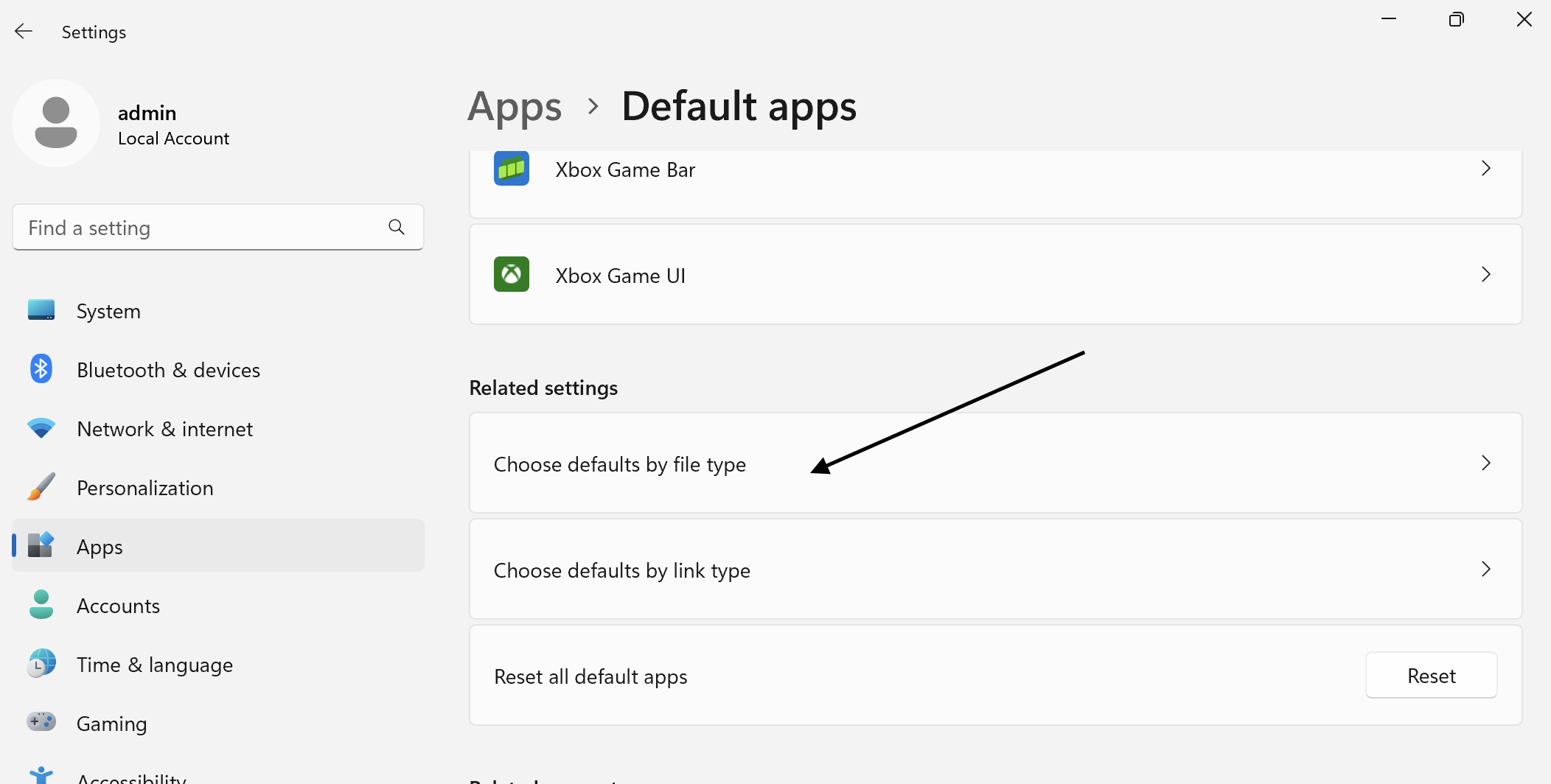
If the “Open With” menu fails, or if you need to fix several different file types at once, you should use the master Default Apps menu. Open the Windows Settings app (press Windows Key + I), click on Apps in the sidebar, and select Default apps. Scroll down to the bottom of the page and click the link that says Choose default apps by file type.
Official Source: https://support.microsoft.com/en-us/windows/change-default-programs-in-windows-e5d82cad-17d1-c53b-3505-f10a32e1894d
You will be presented with a massive alphabetical list of every file extension recognized by your computer. Scroll down until you find the specific extension that is giving you trouble (for example, .mkv for video files). Click the icon of the incorrect app currently assigned to it, and a menu will pop up allowing you to select your preferred program. Verification: Close the settings menu and double-click the problematic file type on your desktop to confirm the system-wide change has taken effect.
Official Source: https://support.microsoft.com/en-us/windows/how-to-open-a-file-with-a-different-app-in-windows-10-and-11-20921471-f92e-4fa7-bb89-60dc98748ed0
Step 3: Set Defaults by the Specific Application
Sometimes it is easier to tell Windows to give a specific application total control over every file type it supports, rather than hunting down individual extensions one by one. For example, if you download VLC Media Player and want it to handle all music and video files automatically. Go to Settings > Apps > Default apps. Instead of scrolling down to the file extensions, look at the list of installed applications at the top of the page.
Official Source: https://support.microsoft.com/en-us/windows/change-default-programs-in-windows-e5d82cad-17d1-c53b-3505-f10a32e1894d
Click on the specific application you want to prioritize (e.g., VLC Media Player). Windows will display a list of every file extension that the software is capable of opening. Go down the list and click any extension currently assigned to a different app (like “Movies & TV” or “Windows Media Player”) and switch it to your preferred software. Verification: Open your “Videos” or “Downloads” folder; all supported media files should now display your preferred app’s logo on their icons.
Official Source: https://support.microsoft.com/en-us/windows/how-to-open-a-file-with-a-different-app-in-windows-10-and-11-20921471-f92e-4fa7-bb89-60dc98748ed0
Step 4: Reset All Default Apps to Microsoft Recommendations
If a malicious program or a botched software uninstallation has completely broken your file associations—causing Word documents to open in Notepad, or photos to open in your web browser—trying to fix them one by one is exhausting. Windows includes a built-in panic button that resets every file association back to its factory-fresh state. Go to Settings > Apps > Default apps.
Official Source: https://support.microsoft.com/en-us/windows/change-default-programs-in-windows-e5d82cad-17d1-c53b-3505-f10a32e1894d
Scroll all the way to the bottom of the Default apps page until you see the section labeled Reset all default apps. Click the Reset button. This will revert your web browser back to Microsoft Edge, your photos back to the Windows Photos app, and your media back to the native Windows media players. Verification: Double-click your corrupted files; they should now open normally in standard Windows applications, allowing you to cleanly reassign them to third-party apps using Step 1.
Official Source: https://support.microsoft.com/en-us/windows/repair-apps-and-programs-in-windows-e90eefe4-d0a2-7c1b-dd59-949a9030f317
Safety Warnings: What to Avoid
When attempting to fix file associations, never download third-party “Registry Fixers” or “File Association Repair” tools from unverified websites. These tools frequently cause catastrophic damage by blindly deleting essential system registry keys, rendering your PC unbootable. Furthermore, never attempt to manually change the default app for critical system extensions like .exe, .dll, or .sys. If you accidentally tell Windows to open all .exe (executable) files using Notepad, you will completely break your ability to launch any application on your computer.
Official Source: https://support.microsoft.com/en-us/windows/protect-my-pc-from-viruses-b36dd591-64f2-cb23-05f5-08130a08e4d3
Frequently Asked Questions (FAQ)
Why do my PDFs keep changing back to Microsoft Edge?
Whenever Windows undergoes a major system update, Microsoft often resets core web and document associations back to its proprietary software to promote Microsoft Edge. Additionally, Edge includes a built-in PDF reader that aggressively sets itself as the default handler. To permanently fix this, open Adobe Acrobat (or your preferred reader), go to its internal Preferences/Settings menu, and select “Set As Default PDF Handler,” which forces a deeper registry override than the standard Windows settings menu.
Official Source: https://support.microsoft.com/en-us/windows/change-default-programs-in-windows-e5d82cad-17d1-c53b-3505-f10a32e1894d
How do I see the file extensions on my computer?
By default, Windows hides file extensions to make folder names look cleaner, which makes troubleshooting associations very difficult. To reveal them in Windows 10 or 11, open File Explorer. Click the View tab at the top of the window (or click “View” on the command bar in Windows 11), hover over Show, and check the box for File name extensions. You will now see .jpg, .pdf, or .docx at the end of every file name.
Official Source: https://support.microsoft.com/en-us/windows/common-file-name-extensions-in-windows-da4a4430-8e76-89c5-59f7-1cdcb1209e80
What if the app I want to use isn’t in the “Open With” list?
If you select “Choose another app” and your preferred software is completely missing from the list, scroll to the very bottom of the prompt and click More apps or Look for another app on this PC. This will open a standard File Explorer browsing window. Navigate to C:\Program Files or C:\Program Files (x86), find the folder for your software, and double-click its primary .exe application file to manually force the association.
Official Source: https://support.microsoft.com/en-us/windows/how-to-open-a-file-with-a-different-app-in-windows-10-and-11-20921471-f92e-4fa7-bb89-60dc98748ed0