When you download a new program and double-click the installer, you expect a smooth progress bar. However, watching the installation freeze at 99%, or receiving an obscure “Error 1603” failure message, is incredibly common. These installation failures usually occur because Windows is aggressively blocking the file from writing to the hard drive, another background program is conflicting with the installer, or the temporary folders required to unpack the software are completely full.
Official Source: https://support.microsoft.com/en-us/topic/fix-problems-that-block-programs-from-being-installed-or-removed-cca7d1b6-65a9-3d98-426b-e9f927e1eb4d
Rather than repeatedly clicking the installation file and hoping for a different result, fixing a stuck installer requires clearing out the failed attempts and adjusting your system permissions. By using built-in Windows diagnostic tools and temporarily adjusting your security software, you can force the installation to complete without risking your computer’s stability.
Official Source: https://support.microsoft.com/en-us/windows/fix-problems-with-apps-from-microsoft-store-93ed0bcf-9c12-3df6-6dda-92ec5d0415ac
Step 1: Run the Installer as an Administrator
By default, standard user accounts do not have the necessary security clearances to write new files directly into the core C:\Program Files directory or modify the Windows Registry. If the installer launches but abruptly fails right as the progress bar starts, it is likely being denied access. Right-click the .exe installation file and select Run as administrator. If the User Account Control (UAC) prompt appears, click Yes to grant the installer the elevated permissions it needs to unpack its files. Verification: Running with elevated privileges should bypass “Access Denied” errors immediately upon launch.
Official Source: https://support.microsoft.com/en-us/windows/create-a-local-user-or-administrator-account-in-windows-20de74e0-ac7f-3502-a866-32915af2a34d
Step 2: Free Up Space and Clear the Temp Folder
When you run an installer, it temporarily extracts gigabytes of data to a hidden “Temp” folder on your primary hard drive before moving the final files into place. If your hard drive is almost full, or if the Temp folder is corrupted with files from previous failed installations, the installer will silently freeze. Press Windows Key + R to open the Run dialog box, type %temp%, and press Enter. Press Ctrl + A to select all the files in this folder, and press Delete to clear them out (skip any files that say they are currently in use). Verification: Check your C: drive storage to ensure you have at least 10 GB of free space, then attempt the installation again.
Official Source: https://support.microsoft.com/en-us/windows/disk-cleanup-in-windows-8a96ff42-5751-39ad-23d6-434b4d5b9a68
Step 3: Temporarily Disable Windows Security (Antivirus)
Sometimes, a legitimate software installer behaves similarly to malware—modifying registry keys and adding startup services. Overzealous antivirus software (including the built-in Windows Defender) may falsely flag the installer and silently quarantine its files mid-installation, causing the progress bar to hang indefinitely. Go to Settings > Privacy & security > Windows Security > Virus & threat protection. Click Manage settings and temporarily toggle off Real-time protection. Run the installer again. Verification: Once the software is successfully installed, immediately turn Real-time protection back on to keep your PC secure.
Official Source: https://support.microsoft.com/en-us/windows/turn-off-defender-antivirus-protection-in-windows-security-99e6004f-c54c-8509-773c-a4d776b77960
Step 4: Use the Microsoft Install and Uninstall Troubleshooter
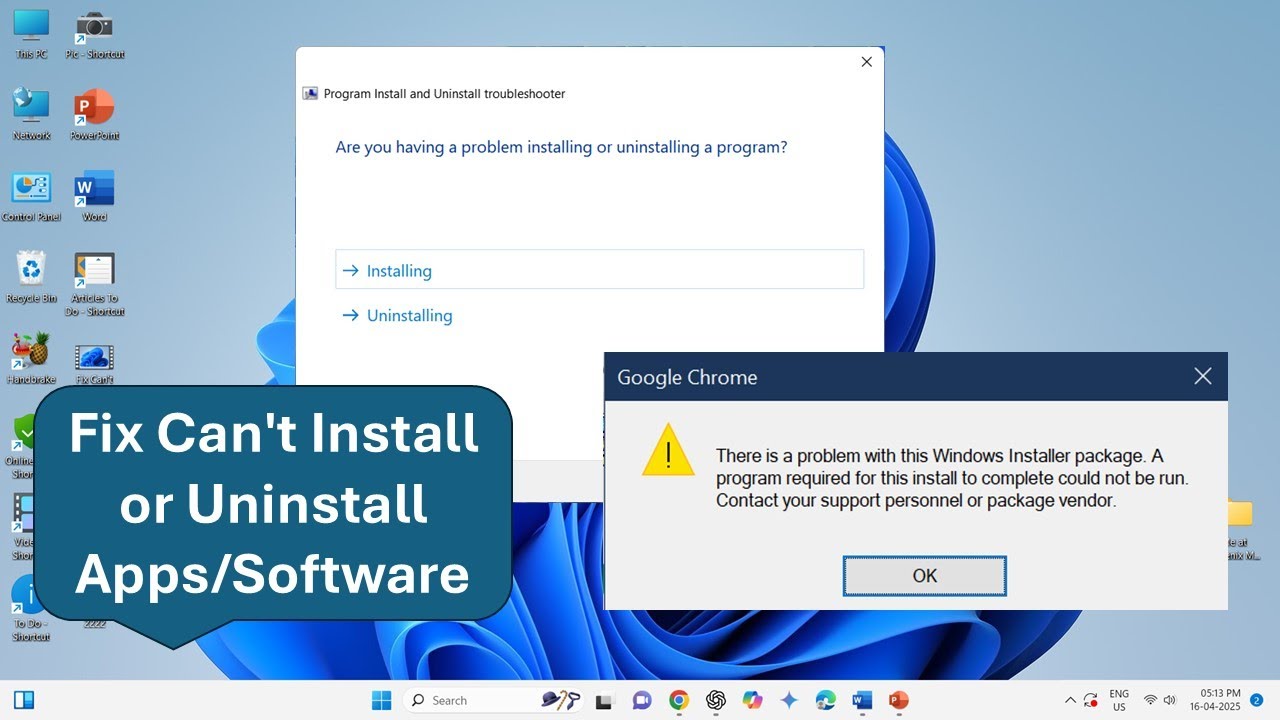
If you are trying to install a program that was previously on your computer (or update an existing one), lingering corrupted registry keys from the old version will block the new installation. Microsoft provides a free, official “Program Install and Uninstall Troubleshooter” designed specifically to scan the registry for these hidden blocks. Download the tool from the official Microsoft Support website, run the troubleshooter, select “Installing,” and choose the program you are trying to install from the list. Verification: The tool will automatically clean the corrupted registry keys, clearing the path for your fresh installer to proceed without encountering a version-mismatch error.
Official Source: https://support.microsoft.com/en-us/topic/fix-problems-that-block-programs-from-being-installed-or-removed-cca7d1b6-65a9-3d98-426b-e9f927e1eb4d
Step 5: Perform a Clean Boot to Bypass Conflicts
If the installer is still freezing, another background application—such as a backup utility, custom desktop theme, or third-party firewall—is likely interfering with the installation process. Performing a “Clean Boot” starts Windows with only the most essential core services, stripping away all third-party interference. Type msconfig in the Windows search bar and open System Configuration. Go to the Services tab, check the box that says Hide all Microsoft services, and then click Disable all. Go to the Startup tab, open Task Manager, disable all startup items, and restart your PC. Verification: Try the installer in this clean environment. If it works, you can return to msconfig and re-enable your services.
Official Source: https://support.microsoft.com/en-us/topic/how-to-perform-a-clean-boot-in-windows-da2f9573-6eec-00ad-2f8a-a97a1807f3dd
Safety Warnings: What to Avoid
When an installer repeatedly fails, do not download third-party “registry cleaners” or automated PC repair tools that claim to fix installation errors. These aggressive utilities frequently delete vital Windows registry files, which can break your operating system and force you to reinstall Windows completely. Additionally, ensure you only download software from the original developer’s official website. A stuck installer is often a symptom of a pirated or tampered file attempting to inject hidden malware while you wait.
Official Source: https://support.microsoft.com/en-us/windows/protect-my-pc-from-viruses-b36dd591-64f2-cb23-05f5-08130a08e4d3
Frequently Asked Questions (FAQ)
Why does my installation freeze at 99 percent?
An installer pausing at 99% or “finishing up” is very common. During this final phase, the installer isn’t moving large files; it is writing registry keys, creating desktop shortcuts, and registering background services. This process requires deep system access and can be temporarily stalled by Windows Security scanning the newly created files. Always wait at least 15 minutes before assuming a 99% progress bar is permanently frozen.
Official Source: https://support.microsoft.com/en-us/topic/fix-problems-that-block-programs-from-being-installed-or-removed-cca7d1b6-65a9-3d98-426b-e9f927e1eb4d
Does a corrupted download cause installation failure?
Yes. If your internet connection briefly dropped while downloading the installer, the .exe or .msi file may be missing critical data packets. The installer will open, but when it attempts to unpack the missing files, it will crash. Delete the failed installer from your Downloads folder, clear your web browser’s cache, and download a fresh copy directly from the official source.
Official Source: https://support.microsoft.com/en-us/windows/fix-wi-fi-connection-issues-in-windows-9424a1f7-6a3b-65a6-4d78-7f07eee84d2c
What is the difference between an MSI and an EXE installer?
An MSI file is a standard Windows Installer database file that uses the built-in Windows installation engine, which is highly structured and easier for Windows to repair or roll back if something goes wrong. An EXE file is a custom executable that can contain any type of installation script. If an MSI fails, restarting the “Windows Installer” service via the Windows Services menu (services.msc) often resolves the issue.
Official Source: https://support.microsoft.com/en-us/topic/fix-problems-that-block-programs-from-being-installed-or-removed-cca7d1b6-65a9-3d98-426b-e9f927e1eb4d