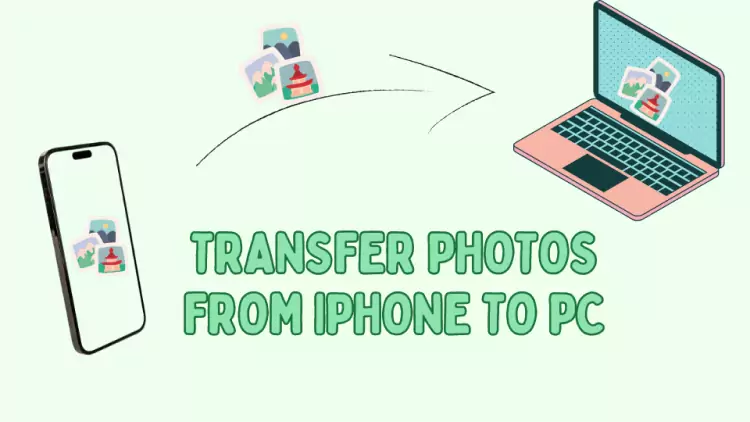
Backing up your smartphone’s camera roll to a computer should be a stress-free process, but one wrong click can accidentally wipe years of memories from your phone. The fear of losing original photos during a transfer is incredibly common, especially because many photo management programs include default settings designed to “clean up” your phone by automatically deleting files once the import is finished.
Transferring photos safely comes down to understanding the difference between “moving” a file and “copying” a file. When you move a file (or use a “Cut” command), the computer deletes the original from your phone as soon as it arrives on the hard drive. When you copy a file, the computer creates an exact duplicate, leaving the original perfectly intact on your mobile device.
Whether you use an Android or an iPhone, a Windows PC or a Mac, this guide provides the exact steps to safely copy your photos using official tools, ensuring your original files are never deleted from your phone.
Official Source: https://support.microsoft.com/en-us/windows/import-photos-and-videos-from-phone-to-pc-198f2301-e9a7-c734-5f39-a8946a5ebc99
Method 1: Android to Windows PC via USB (The Copy & Paste Method)
The safest and most reliable way to transfer photos from an Android phone to a Windows PC is to manually copy the files using File Explorer. By doing this manually rather than using automated photo software, you guarantee that no hidden settings will erase your originals.
-
Connect your phone: Plug your Android phone into your Windows PC using a compatible USB-C or Micro-USB cable.
-
Unlock and authorize: Unlock your phone screen. A notification will appear on your phone saying “Charging this device via USB.” Tap this notification.
-
Select File Transfer: In the menu that appears on your phone, select File Transfer (or MTP).
-
Open File Explorer on your PC: On your computer, open File Explorer (Windows Key + E) and look under “This PC” on the left sidebar. Click on your phone’s name.
-
Navigate to your photos: Double-click Internal Storage (or SD Card if your photos save there), then open the DCIM folder, and finally open the Camera folder. This is where your original photos live.
-
Copy the files: Press Ctrl + A to select all photos, or hold Ctrl and click specific photos. Right-click any highlighted photo and select Copy (or press Ctrl + C). Do not select “Cut”.
-
Paste to your PC: Navigate to the “Pictures” folder on your PC, right-click an empty space, create a new folder, right-click inside it, and select Paste (or press Ctrl + V).
Because you used the “Copy” command, Windows will duplicate the files onto your hard drive. You can safely unplug your Android phone, and all the original photos will remain exactly where they were in your mobile gallery.
Official Source: https://support.google.com/android/answer/9064445
Method 2: iPhone to Windows PC (Using the Windows Photos App)
Apple devices use high-efficiency image formats and security protocols that can sometimes make manual copying via File Explorer prone to disconnecting. The safest way to transfer iPhone photos to a Windows PC while keeping the originals is by using the built-in Microsoft Photos app.
-
Install Apple Drivers: For the most stable connection, download the Apple Devices app (or iTunes on older Windows versions) from the Microsoft Store. This ensures your PC has the necessary drivers to read the iPhone.
-
Connect and Trust: Plug your iPhone into the PC using a Lightning or USB-C cable. Unlock your iPhone. If a prompt asks to “Trust This Computer,” tap Trust and enter your passcode.
-
Open Windows Photos: Click the Start menu on your PC, type “Photos,” and open the default Windows Photos app.
-
Start the Import: Click the Import button at the top right of the Photos app and select your iPhone (it may appear as “Apple iPhone” or your specific device name).
-
Select Images: The app will scan your phone and display your camera roll. Select the photos you want to transfer.
-
Uncheck the Delete Option (Crucial Step): Before clicking the final import button, look for a checkbox or settings gear icon labeled “Delete items after import.” You must ensure this box is completely unchecked.
-
Import: Click Import [Number] items.
Once the progress bar finishes, the photos will be safely backed up to your PC’s hard drive, and the unchecked delete box guarantees your originals are kept on your iPhone.
Official Source: https://support.apple.com/en-us/120267
Method 3: iPhone to Mac (Using the macOS Photos App)
Transferring from an iPhone to a Mac is a seamless process natively supported by Apple’s ecosystem. The macOS Photos app is the most reliable tool for this job.
-
Connect: Plug your iPhone into your Mac using a USB cable and unlock your device.
-
Authorize the Connection: If prompted on your iPhone to “Trust This Computer,” tap Trust. If prompted on your Mac, click Allow.
-
Open the Photos App: The macOS Photos app usually opens automatically when an iPhone is connected. If it does not, open it from your Applications folder or Launchpad.
-
Navigate to Devices: Look at the left sidebar in the Photos app under the “Devices” section and click on your iPhone.
-
Verify the Delete Setting: At the top of the Import screen, locate the checkbox that says “Delete items after import.” Ensure this box is completely unchecked. This is the single most important step to keep your originals on the phone.
-
Import: Select specific photos and click Import Selected, or simply click Import All New Items.
Your Mac will copy the files into its local Photo Library while leaving your iPhone’s camera roll completely untouched.
Official Source: https://support.apple.com/en-us/120267
Method 4: Android to Mac (Using Android File Transfer)
Mac computers do not natively read Android file systems via USB. To safely copy photos from an Android device to a Mac without losing originals, you must use Google’s official utility.
-
Download the Tool: Download and install the free Android File Transfer app from the official Android website onto your Mac.
-
Connect your Android: Plug your phone into your Mac using a USB cable.
-
Select File Transfer: Unlock your Android phone, tap the “Charging this device via USB” notification, and select File Transfer (or MTP).
-
Open Android File Transfer: The application should launch automatically on your Mac. If not, open it from your Applications folder.
-
Locate Photos: Double-click the DCIM folder, then double-click the Camera folder.
-
Drag and Drop: Highlight the photos you want to save. Click and drag the highlighted files from the Android File Transfer window onto your Mac’s desktop or into a specific folder in the Finder.
Dragging and dropping from the Android File Transfer window to a Mac automatically acts as a “Copy” command. The files will duplicate onto your Mac, and the originals will stay on your Android phone.
Official Source: https://support.google.com/android/answer/9064445
Important Safety Warnings: What to Avoid
To ensure you never accidentally lose your original photos during a computer transfer, avoid the following practices:
-
Never use the “Cut” command: On a Windows PC, always right-click and select “Copy.” If you use “Cut,” the file is immediately deleted from your phone’s storage the moment it is pasted onto the computer. If the transfer is interrupted midway, the file could be lost forever.
-
Beware of third-party phone managers: Many unverified “Phone Manager” or “Data Transfer” programs found online bundle aggressive “phone cleaning” features that automatically delete original media once backed up. Stick to the official tools built into Windows and macOS.
-
Do not unplug during a transfer: Yanking the USB cable out before a transfer reads “100% Complete” can result in corrupted files on the computer. However, because you are copying the files rather than cutting them, the originals on your phone will generally survive an abrupt disconnection unharmed.
Official Source: https://support.microsoft.com/en-us/windows/import-photos-and-videos-from-phone-to-pc-198f2301-e9a7-c734-5f39-a8946a5ebc99
Frequently Asked Questions (FAQ)
If I delete a photo from my phone after the transfer, will it delete from my computer?
No. If you transfer photos using a USB cable via the manual copy-and-paste method or the native Windows/Mac import tools, you are creating a standalone, hard-drive copy. Deleting the photo from your phone later will not affect the file saved on your computer.
Why do my iPhone photos look like blank squares on my Windows PC?
By default, iPhones take photos in a high-efficiency format called HEIC. Older Windows PCs cannot read HEIC files natively without an extension. To fix this, you can download the “HEVC Video Extensions” from the Microsoft Store. Alternatively, go to your iPhone Settings > Photos and under “Transfer to Mac or PC,” select Automatic. Your iPhone will convert the photos to standard JPGs as it copies them through the USB cable.
Does transferring photos via USB reduce their quality?
No. When you copy photos via a USB cable using File Explorer (Windows) or the Apple Photos app (Mac), you are transferring the exact, uncompressed original file data. Transferring via email, WhatsApp, or social media often compresses the image, but a direct USB transfer maintains 100% of the original quality.