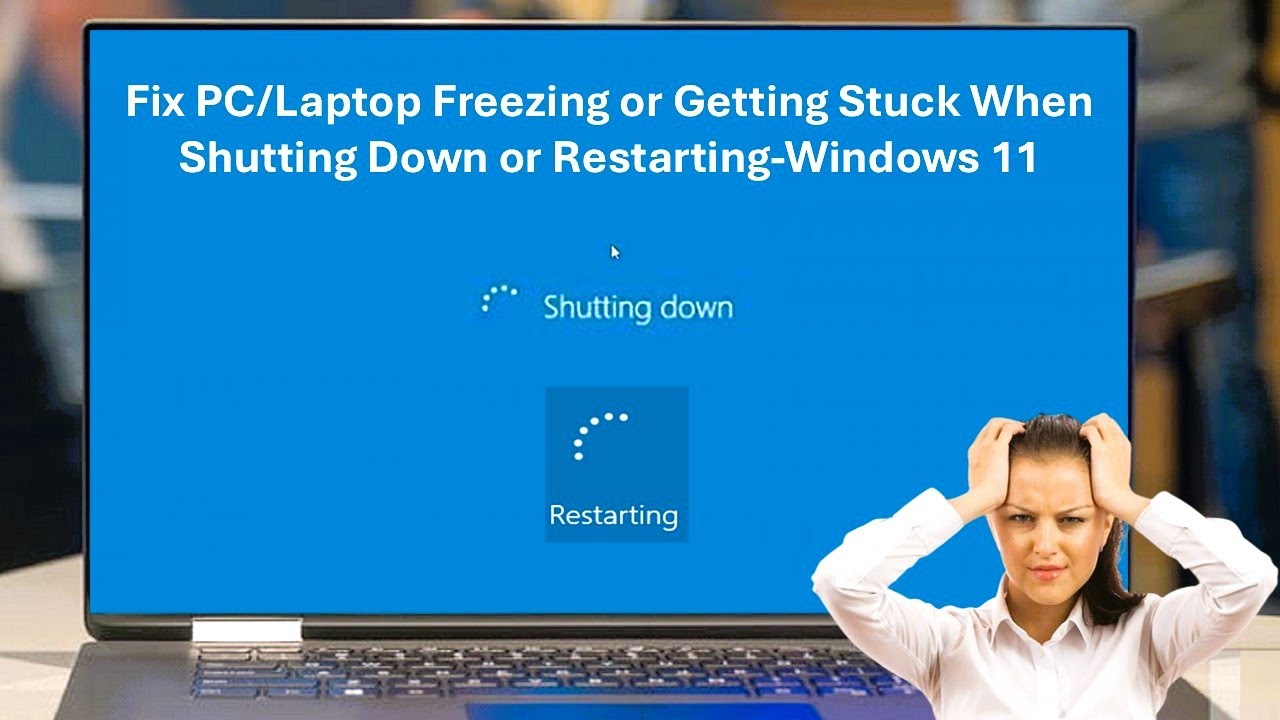
Experiencing a sudden computer freeze is frustrating, but it is even more concerning when your entire system locks up—the mouse cursor is frozen or unresponsive, keyboard shortcuts do nothing, and the desktop fails to respond to normal shutdown commands. When your Windows PC freezes completely without letting you shut down normally, it usually points to a system-level hang, an unresponsive display driver, a malfunctioning background service, or underlying hardware instability.
This guide outlines safe, sequential steps to resolve the immediate lockup, uncover the root cause, and prevent future freezes on Windows 10 and Windows 11.
Understanding the Symptoms and Plausible Causes
When a computer freezes entirely, the operating system kernel or a critical driver has stopped communicating with hardware components. Common causes include:
-
Stalled Graphics Drivers: The GPU driver crashes or stops responding, freezing the display interface while background processes may or may not still be running.
-
Corrupted System Files: Damaged core operating system components preventing normal task execution.
-
Faulty Hardware or Peripherals: A failing storage drive, overheating CPU/GPU, or unstable RAM modules.
-
Background Software Conflicts: Third-party utility tools, conflicting antivirus software, or misbehaving background applications.
Step 1: Attempt Quick Keyboard and Driver Resets
Before forcing a hard shutdown, check if Windows is responsive to specific low-level hardware shortcut commands built directly into the operating system:
-
Reset the Graphics Subsystem: Press Windows Key + Ctrl + Shift + B simultaneously.
-
What it does: This keyboard shortcut forces Windows to restart the graphics driver instantly. Your screen will flicker black for a second, and you may hear a short beep. If a stalled GPU driver caused the freeze, your desktop will spring back to life.
-
-
Test Keyboard Responsiveness: Press the Caps Lock or Num Lock key on your keyboard. Look at the indicator lights on the keyboard. If the light toggles on and off, the operating system kernel is still partially running, and input devices may just be temporarily jammed.
-
Open Task Manager Directly: Press Ctrl + Shift + Esc. If the screen responds, locate Windows Explorer in the list, right-click it, and select Restart to clear out a locked desktop shell.
Step 2: Perform a Safe Hard Shutdown
If the system remains completely unresponsive after attempting quick resets, you will need to perform a physical power cycle.
-
The Procedure: Press and hold the physical Power Button on your computer case or laptop for approximately 10 to 15 seconds until the machine powers completely off.
-
What to Avoid: Do not pull the power cord straight out of the wall outlet or yank a laptop battery immediately unless the power button is entirely non-functional, as sudden power cutoffs can occasionally cause file system corruption. Wait 30 seconds after shutdown before turning the computer back on.
Step 3: Check System Logs for Error Triggers
Once your PC boots back up, you should investigate what triggered the freeze so it doesn’t happen again.
-
Right-click the Start menu and select Event Viewer.
-
Expand Windows Logs on the left panel and click on System and Application.
-
Look for critical errors (marked with a red icon) labeled Kernel-Power (Event ID 41, which indicates the system rebooted without cleanly shutting down) or application crashes occurring right before the timestamp of the freeze.
Step 4: Run System File and Image Repairs
Corrupted operating system files are a frequent culprit behind random system lockups. You can repair them safely using built-in command-line tools:
-
Press the Windows Key, type cmd, right-click Command Prompt, and select Run as administrator.
-
Type the following command and press Enter:
DOSsfc /scannow -
What to expect: The System File Checker (SFC) will scan all protected operating system files and replace corrupted entries. Wait for the process to reach 100%.
-
Next, to repair the underlying Windows system image, run this command and press Enter:
DOSDISM /Online /Cleanup-Image /RestoreHealth
Step 5: Test for RAM and Hardware Instability
Faulty or unstable memory modules frequently cause sudden, unrecoverable system freezes. Windows includes a built-in diagnostic tool to test your RAM:
-
Press Windows Key + R, type mdsched.exe, and press Enter.
-
Click Restart now and check for problems (recommended).
-
Your PC will restart into a diagnostic blue screen and test your memory modules. Allow the test to complete fully; Windows will boot back to the desktop automatically and display any detected memory errors in the notification center.
Alternative Solutions If Freezing Persists
If your PC continues to freeze regularly, consider these advanced steps:
-
Update or Clean-Install Graphics Drivers: Download the latest stable display driver directly from NVIDIA, AMD, or Intel depending on your hardware, or use Device Manager to update display adapters.
-
Boot into Safe Mode: Test your computer in Safe Mode to determine if third-party software or background utilities are causing the conflict.
-
Check for Overheating: Ensure your computer fans are clean and CPU/GPU temperatures are within normal operating ranges using hardware monitoring software.
Prevention Advice
-
Keep Windows and Drivers Updated: Regular updates patch stability bugs known to cause system deadlocks.
-
Avoid Unverified Tweaking Utilities: Refrain from downloading third-party registry cleaners or unauthorized performance boosters that modify core Windows settings.
-
Maintain Free Disk Space: Ensure your primary system drive (C:) maintains at least 10% to 15% free space to allow Windows to manage virtual memory paging files efficiently.
Frequently Asked Questions
1. Why does my mouse move, but everything else is frozen?
When the mouse cursor moves but clicking icons or pressing keys does nothing, the Windows desktop window manager or Explorer shell has crashed, while the mouse driver (which operates at a lower kernel level) remains active. Pressing Ctrl + Shift + Esc to open Task Manager and restarting Windows Explorer usually resolves this.
2. Can a failing hard drive cause random computer freezes?
Yes. If your storage drive (HDD or SSD) experiences bad sectors or sudden read/write stalls, Windows will pause operations indefinitely waiting for data response, resulting in a complete system hang.
3. Is it safe to hold down the power button to turn off a frozen PC?
Yes. When a computer is entirely unresponsive and standard input commands fail, a hard shutdown via the power button is a safe and necessary workaround to restart the device.
4. How do I know if my hardware is failing?
If freezes occur even when running a fresh installation of Windows or happen during intensive tasks like gaming, it strongly suggests underlying hardware issues such as failing RAM, an overheating processor, or an unstable power supply unit (PSU).
C. Verified Direct Official Sources
-
Source Title: Mouse and keyboard problems in Windows
-
Publisher: Microsoft Support
-
Direct URL:
[https://support.microsoft.com/en-us/windows/hardware/input-devices/mouse-and-keyboard-problems-in-windows](https://support.microsoft.com/en-us/windows/hardware/input-devices/mouse-and-keyboard-problems-in-windows) -
What it Supports: Hardware connection troubleshooting, USB device resetting, and driver management procedures.
-
Verification Status: Verified direct official source.
-
-
Source Title: Troubleshooting blank screens in Windows
-
Publisher: Microsoft Support
-
Direct URL:
[https://support.microsoft.com/en-us/windows/hardware/display-graphics/troubleshooting-blank-screens-in-windows](https://support.microsoft.com/en-us/windows/hardware/display-graphics/troubleshooting-blank-screens-in-windows) -
What it Supports: Graphics driver reset shortcut (
Win + Ctrl + Shift + B), Safe Mode navigation, and Windows Explorer restart steps. -
Verification Status: Verified direct official source.
-
-
Source Title: Windows-based computer freeze troubleshooting
-
Publisher: Microsoft Learn
-
Direct URL:
https://learn.microsoft.com/en-us/troubleshoot/windows-client/performance/windows-based-computer-freeze-troubleshooting](https://learn.microsoft.com/en-us/troubleshoot/windows-client/performance/windows-based-computer-freeze-troubleshooting -
What it Supports: Advanced system diagnostic logs, memory dump configuration, and performance monitoring commands.
-
Verification Status: Verified direct official source.
-